Activity
Mon
Wed
Fri
Sun
Nov
Dec
Jan
Feb
Mar
Apr
May
Jun
Jul
Aug
Sep
Oct
What is this?
Less
More
Owned by Kaylene
Your insider pass to California’s real estate investing scene — connect & collaborate with a powerful network.
Foreclosure Knock Academy
191
5.0
Free
AIpreneurs Business Lab
162
$10,000/y
AIpreneurs Lab w/Dan Mowinski
20
5.0
$47/m
Ryan Fenn
212
$97/m
GOOSIFY 🍎🐛🦋🌈⭐️🩷
13.1k
5.0
Free
Money Broker Society
24k
Free
the skool CLASSIFIEDS
2.1k
5.0
$2/m
The Marriage Skool
50
$9/m
178 contributions to CA Real Estate Insiders

4d •
🚀 Muse AI for Real Estate Wholesaling — Your AI Acquisitions Assistant
I wanted to share something with the community that I think could be a game changer for how we run our wholesaling businesses. I’ve been exploring Muse AI, Meta’s new AI agent, and how we can use it to handle a lot of the repetitive work we deal with every day as investors. The goal is simple: Spend less time researching, organizing leads, and doing administrative work, and more time talking to sellers, making offers, and closing deals. Here’s how we can put Muse to work: 🔹 Getting Started — Set up Muse on your phone or computer and customize it around your investment business. 🔹 Building Your Knowledge Base — Teach Muse your buy box, target markets, acquisition criteria, offer formulas, scripts, and wholesaling strategies so it understands how you operate. 🔹 Finding Motivated Sellers — Research distressed properties, pre-foreclosures, vacant homes, high-equity properties, and other potential opportunities using available data sources. 🔹 Market Research — Identify active cash buyers, popular ZIP codes, investment activity, and markets worth targeting. 🔹 Property Analysis — Help calculate ARV, estimate repair costs, analyze comparable sales, and work through potential offers. 🔹 Agent & Seller Outreach — Prepare professional messages, organize follow-ups, and keep track of conversations. 🔹 Daily Acquisitions Workflow — Build a morning routine around researching properties, reviewing leads, preparing offers, and following up on opportunities. 🔥 Here’s where it gets interesting. Muse can work across connected apps, browse the web, and handle multi-step tasks with your direction. With the right setup, we can start building repeatable workflows instead of doing everything manually. Of course, we still need to verify property data, run our numbers, and make the final investment decisions. My goal is to build an AI acquisitions assistant that understands our wholesaling process and helps us stay consistent every day. I’m working on breaking down the setup, knowledge

1 like • 3d
Great post! Our money making time should be talking to sellers, making offers, and closing deals.

3d •
New strategy for affordable buying
Came across my LinkedIn feed. Cool concept would be interested if anyone does this now? https://www.jubileehomes.com/resources/want-a-home-without-the-hefty-down-payment

2 likes • 3d
I had AI break it down: Jubilee Homes is doing something different: you buy the house, they buy the land. How it works: 🏠 You buy the home with as little as 2% down + a standard mortgage 🌱 Jubilee owns the land and leases it to you monthly 🔑 Later, you can buy the land or sell both together Why it’s interesting: Land is often the most expensive part of a home. Taking it out of the purchase means a much smaller down payment, so buyers can get in sooner. ⚠️ The fine print (per $1M home): - Ground rent starts around $2,979/mo and goes up 3% every year - Add the mortgage (~$1,979/mo) and you’re near $4,958/mo before taxes, insurance and HOA - Buying the land later costs the original price or market value, whichever is higher My take: Great for getting in the door faster, but the rent keeps growing until you buy the land. Always compare it to options like FHA (3.5% down) before deciding.
5d •
🎙️ Stop Typing. Start Talking. Meet Wispr Flow.
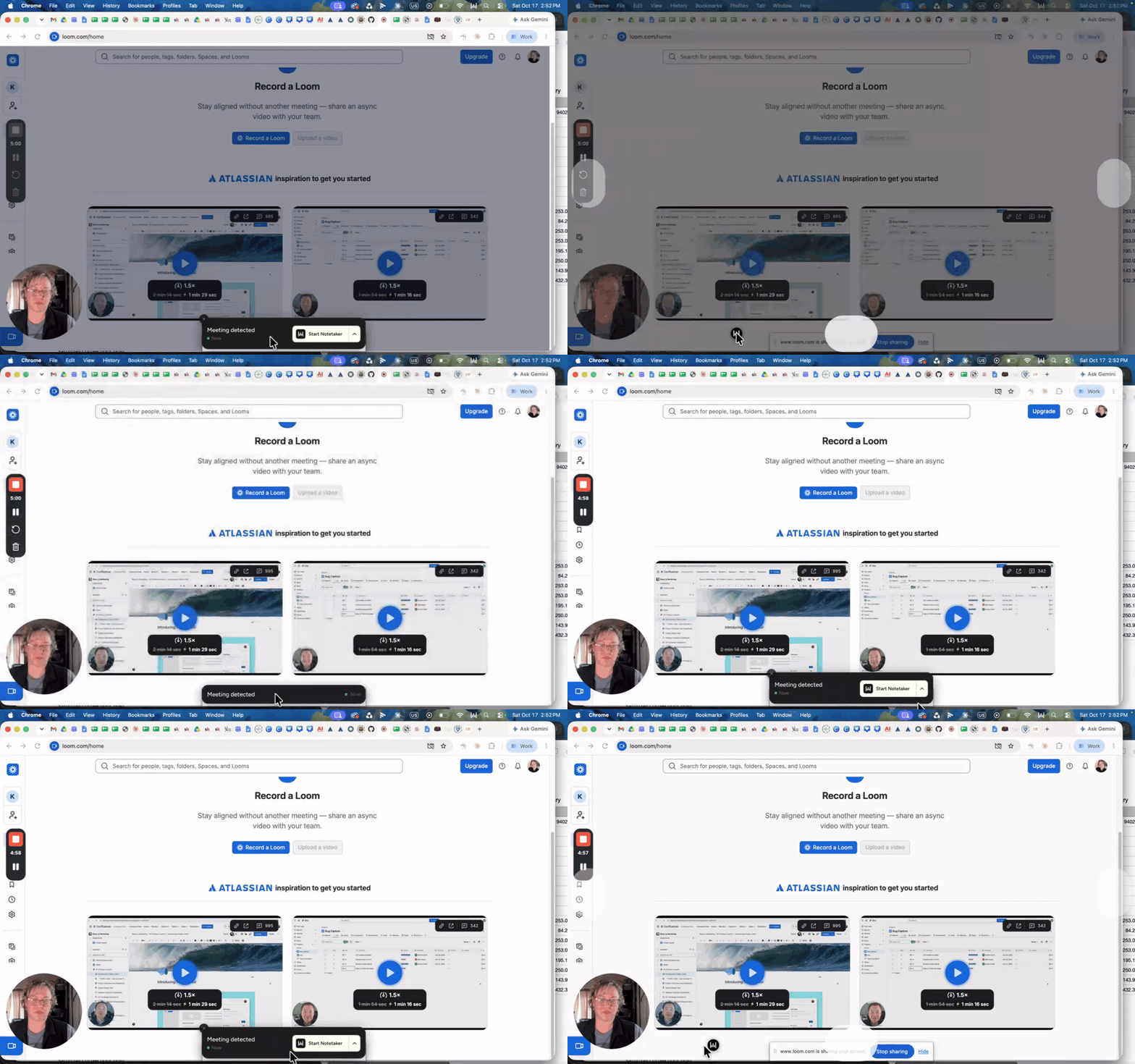
🎙️ What if you could write emails, texts, follow-ups, and posts 3–4x faster, just by TALKING? (SEE VIDEO) That’s Wispr Flow. It’s an AI voice tool that works in almost any app you already use: Gmail, Slack, Skool, your CRM, even ChatGPT and Claude. ⚡ How it works 1️⃣ Hold a hotkey 2️⃣ Talk like you normally would 3️⃣ Let go, and clean, polished text appears ✨ Why it’s a game changer - 🧹 Cleans up your rambling. It drops the “ums,” fixes grammar, and adds punctuation. - 🔁 Catches when you change your mind. Say “meet at 3… actually 4,” and it writes “4.” - 🌎 Works across languages. Great if you work with clients in more than one language. - 📱 Works on desktop and phone. Talk your way through follow-ups between showings 🏡 How investors and agents are using it - Firing off seller follow-ups in seconds - Writing property descriptions while walking the property - Talking out deal notes right after a call while it’s still fresh - Writing prompts for AI tools without the typing slowing you down 🚀 Try this today: Download Wispr Flow (there’s a free plan) and use it for just one day instead of typing. Then come back and tell us how much time you saved 👇 What’s the #1 thing you’d use it for? Drop it in the comments!
2 likes • 5d
@Anthony John English Today I created that Cold Call Script, 2 Google Forms and 4-5 posts. It's made it SOOOO easy.
5d •
🤝 Introducing Insider Connections!
Want more people in our community to know who you are and what you do? We're building the Insider Connections directory, a go-to list of members so buyers, fixers, lenders, agents, wholesalers and TCs can easily find and connect with each other. When your info is in the directory, it's easier for members to: ✅ Find you when they need your services ✅ Refer deals and clients your way ✅ Make the right introductions to grow your network It only takes 2 minutes. Fill out the form here: 👉 [FORM LINK] Add your socials, website and a short description of your services so people know exactly how to work with you. Let's get connected! 🔑 SEE INSIDERS CONNECTIONS IN THE CLASSROOM

5d •
💯 FIND YOUR NEXT DEAL~Investors Buy Box Form
I want to take a moment to say how grateful we are for each of you. Over 500 of you have chosen to learn, grow, and invest alongside us here in CA Real Estate Insiders, and that means the world to us. 💛 This community is about more than education. It's about helping YOU actually close deals. That's where your Buy Box comes in. 📦 When we know exactly what you're looking for, we can bring opportunities straight to you: 🏡 Property type (SFR, multifamily, land, etc.) 📍 Markets and zip codes 💰 Price range and budget 🔧 Condition (turnkey, light rehab, full flip) 📈 Strategy (flip, rental, BRRRR, wholesale) 👉 Fill out the Buy Box form here: [BUY BOX LINK] It takes less than 5 minutes. Once your Buy Box is in, we'll start matching you with deals that fit your goals. Our mission is simple: help you find properties to buy and build real wealth. Thank you for being here. Let's find your next deal together! 🔑 💬 Comment "DONE" below once you've submitted so we can welcome you to the deal list!

1-10 of 178

@kaylene-frost
Builder of Real Estate Communities. Providing CA investors with PROFITABLE solutions to their investment strategies.
Active 12h ago
Joined Apr 18, 2025
SoCal
Powered by