Activity
Mon
Wed
Fri
Sun
Jun
Jul
Aug
Sep
Oct
Nov
Dec
Jan
Feb
Mar
Apr
What is this?
Less
More
Memberships
Creative 3D Community
6.6k members • Free
2 contributions to Creative 3D Community

Dec '23 •
Where is Quad view in Plasticity ?
I didn't found quad view here in plasticity, the look is very similar to Blender, if it has quad view it will be easy to modelling. I tired Ctrl+Alt+ Q but didn't work like Blender

0 likes • Dec '23
I think the question refers to displaying being able to split the main viewport into quadrants to simultaneously display top, side, front and persp views. As far as I am aware, Plasticity doesn't do this. Best you can do is to upvote it on the official feature requests page. https://plasticity.canny.io/feature-requests/p/split-viewport
Nov '23 •
Wrap / Unwrap
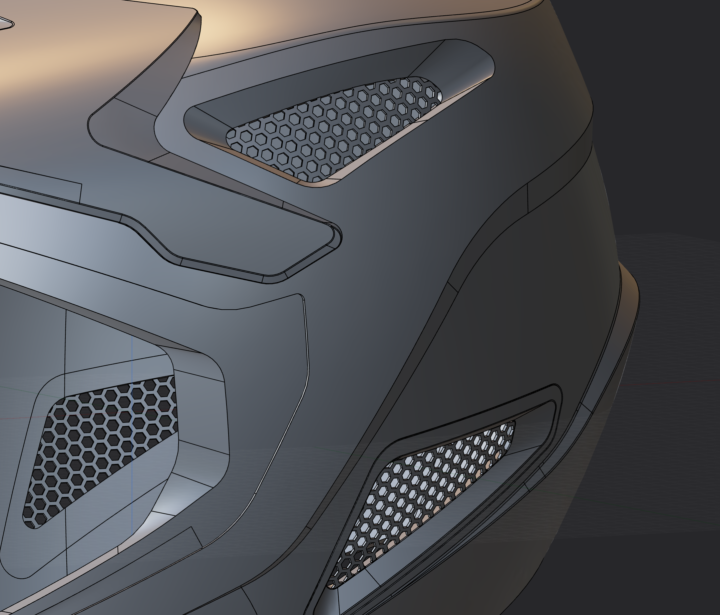
Hi Nikita, I'm a seasoned polygon modeler and am new to Plasticity. I have been going through your helmet modeling course. I've got to the bit where you are building the hexagon meshes. I went off on a tangent and found a much better way, which I thought I'd share with you. The process would be something like this: 1. Patch the hole to create a sheet (but don't thicken yet) 2. Select the new patch in face mode and hit 'F' and find 'Unwrap face'. A new flattened curve will be created somewhere near the origin. 3. (optional) select the patch again, 'Untrim' and 'Unwrap Face' again. I found that the process would sometimes fail, but doing this seems to help. 4. On the untrimmed and unwrapped shape, chop it up with some curves etc. 5. Once you're done select the curves. Selecting the faces you want to keep and pressing shift-d gives you what you need. Then also select the untrimmed patched face. 6. Hit 'F' again and 'Wrap Face'. The flat curves are now perfectly projected onto the curved patch. 7. You can now select the face, add some thickness and delete all the unnecessary bits. Works like a dream. It's a beta feature so may be prone for failure. Hopefully the untrim workaround will not be necessary in the future. And now that I think about it, you might only need to untrim when wrapping the shape back on, which would simplify things.
0 likes • Nov '23
@Nikita Kapustin Of course, hope this helps. Step 5 is where I've printed 'shift-d' on the screen. The difference from your video is that I am selecting it in face mode. You could go through and do a load of trimming on the curves to get the same result, but this is much quicker. Like I mentioned, the face untrim step is not always necessary, it wasn't in this test case, but I did it anyway. Let me know if it still doesn't work for you and I will try to explain it better.
1-2 of 2