
Write something
Pinned

Dec '25 •
👋 START HERE — Welcome to Digital HomeSkool
If you're new, start here before you click anything else. This post will show you exactly how Digital HomeSkool works, what’s free, and what to do first. ✨ Step 1: How this works Digital HomeSkool is not “sit and watch” learning — it is project-based, hands-on, and built around real skills kids actually use. ✅ Kids don’t just watch lessons, they create things ✅ Every unit ends with a finished project ✅ Parents post the work (kids don’t need accounts) ✅ Progress matters more than perfection If your child is making and experimenting, they are doing it right. 🎯 🎓 Step 2: Start with the Core Skills (Free) Before big projects, begin with these foundations: 🤖 AI Image Generation – Learn how to give clear instructions to AI 💻 AI Vibe Coding – Turn ideas into simple, fun apps 🎨 Graphic Design in Canva – Use templates, text, and images to design and export 💬 AI Chat Bot – Use and create GPT‑style chatbots for learning 🎬 Video Editing in Canva – Edit videos and add audio These Core Skill Units are free for all families and power every other unit in Digital HomeSkool. ⚡ 🧩 Step 3: Unlock Integrated Project Units (Creator Library) Once your child has tried 1–2 core skills, you can choose from our Integrated Unit Library: - Business projects (like T‑shirt design and Shark Tank‑style pitches) - Creative English, History, Geography, PDHPE, and Music projects - Short 3–4 day mini projects and longer multi‑week ones These integrated units are part of the Creator Library (premium membership: $19/month per family) and are built from the same skills kids learn in the free core units. 📤 Step 4: Share your child’s work When your child finishes a project (core or integrated): 📸 Upload an image, video, or screenshot of what they made ✍️ Add a short caption with their age and what they created (no personal details) That’s it. The work speaks for itself. 🙌 🛡️ Step 5: Safety for your family This is a family‑safe learning space, and safety comes first. 🔒 Kids don’t message or post directly
Dec '25 •
🎉 We Hit 100 Members!
Digital HomeSkool just reached 100 members – thank you for being here and trusting me with your kids’ learning. From the start, the goal has been to give homeschool kids 8–16 fun, project‑based ways to learn real digital skills like AI, image creation, design, video, and coding. What “Founding Member” Means If you’re in the first 100 members, you are a Founding Member. - You keep free access to all current and future integrated project units. - You were here early helping shape what Digital HomeSkool looks like. New families will join the Creator Library for $19/month to access those integrated projects, but Founding Members keep that access without paying. How You Can Help If you’d like to support the next stage: - Comment below with your child’s favourite unit or project so far. - Share a photo or screenshot of something they’ve made. - Tell a homeschool friend they can try the 5 core digital skill units for free, and upgrade later if they love it. Kayla @ DIgital HomeSkool
Dec '25 •
🎨 Creative Challenge - Create a Cute Cartoon Clipart
Today’s challenge: Create a Cute Cartoon Clipart 🖊 What to do - Copy the prompt below - (Optional) Change the cartoon animal to any you like - Generate your image at https://ideogram.ai/ full color, cute little, adorable unicorn sitting with a huge chocolate cupcake, clip art cartoon, black outline, white empty background - Download it and share it in the comments 👇
2
0

Dec '25 •
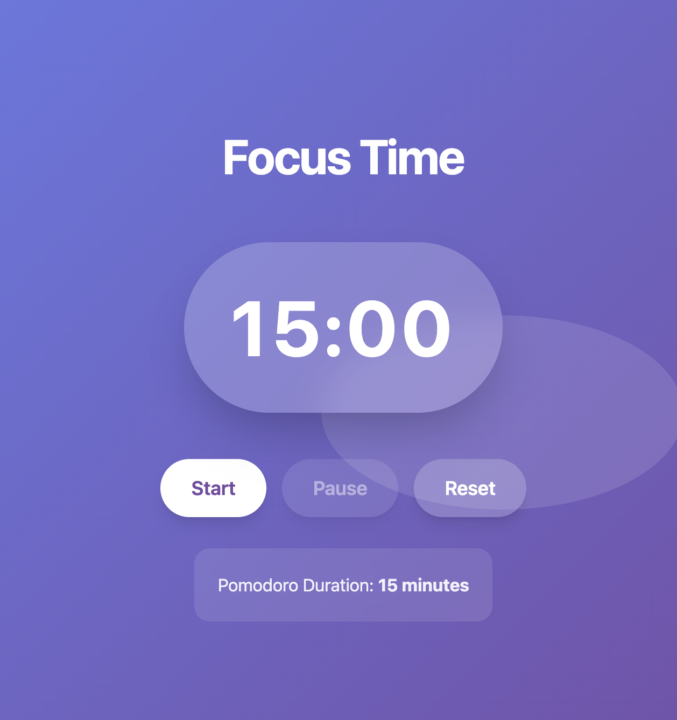
🎯 Creative Challenge - Design a Pomodoro Timer with Canva AI
Today’s task is to design a Pomodoro countdown timer using Canva AI. What to do 1. Open Canva 2. Go to Canva AI / Magic Design 3. Paste the prompt below 4. Generate your design 5. Save or screenshot your result 6. Share it in the comments 7. Keep Asking for adjustments until its perfect 🤖 AI Prompt (Copy & Paste) Create a visually striking Pomodoro countdown timer with contemporary design. Start with a minimalist example featuring a 15-minute Pomodoro timer with pulsing animation and subtle sound alerts. Use bold typography and a calming blue-to-purple gradient background.
1
0
Dec '25 •
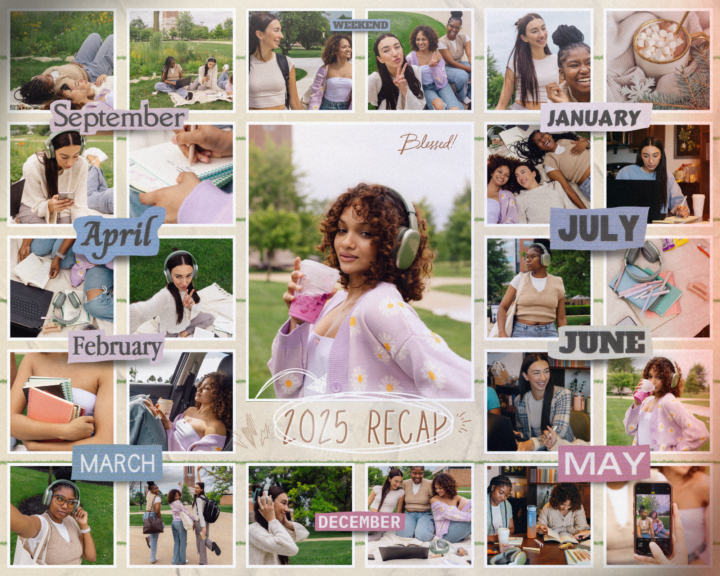
🎨 Creative Challenge – 2025 Memory Board
Today’s challenge: Start your 2025 Year-in-Review Board 🎉 🖊 What to do - Open Canva 2025 mood board link here - Find a 2025 board template you love. - Add your name and a fun 2025 title (for example: “My 2025 Board” or “Best of 2025”). - Pick 2–3 colours you like and update the background or accents. Optional ideas: - Add photos from something you did or of people and moment from 2025. - Add one short sentence about your favourite memory so far.
0
0
1-14 of 14
powered by
skool.com/young-creators-lab-8783
Project-based digital learning units for homeschool kids 8–16. AI, video, web and app design, image creation, automation, and weekly challenges.
Suggested communities
Powered by