
Write something

4d •
Quick AI Update That I Think Actually Matters For Business Owners.
OpenAI just moved Codex into the ChatGPT desktop app. If you don’t know what Codex is, keep it simple: ChatGPT helps you think through the work. Codex helps you move the work forward. That might sound small, but it’s a big shift. Most people still use AI like this: Ask a random question. Get an answer. Open a new chat. Start over again. That’s helpful, but it’s not where the real leverage is. The real leverage comes when you connect AI to a real system. That’s why the first thing I show you inside the Start Here classroom is how to set up your Command Center template and connect it with Codex. Because the goal is not to have better prompts. The goal is to give your AI a real place to work from. Your tasks. Your follow-up. Your ideas. Your content. Your offers. Your next steps. All of that needs somewhere to go. Once your Command Center is set up, Codex can help you do things like: Turn a messy brain dump into tasks. Review your offer and find what’s unclear. Turn notes into a follow-up plan. Build a weekly executive brief from your numbers. Take an idea and turn it into something usable. That’s the difference. AI becomes way more useful when it has: clear context a clear role a clear outcome a place where the work lives Side note: I’ve been using Codex for a few months now, and it has honestly felt like adding a small team for a fraction of the cost. But the tool is not the magic. The setup is. If you’re new here, go to the classroom and watch the Start Here. Use the template. Connect Codex. Then give your Executive Assistant one real job this week.
0
0

6d •
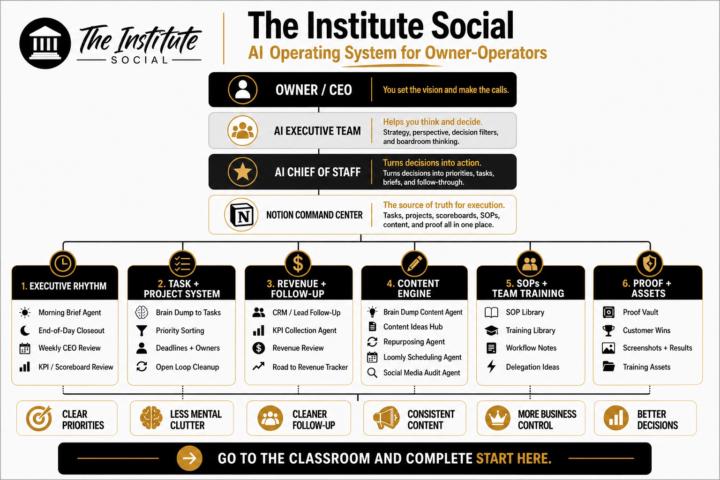
The AI Operating System We’re Installing In This Room
I wanted to show you the bigger picture of what we’re actually building inside this community. This graphic is the full operating system I use across my businesses. At the highest level, it has 4 layers: - You — the owner / CEO - AI Executive Team — helps you think, filter, and make better decisions - AI Chief of Staff — turns those decisions into priorities, tasks, briefs, and follow-through - Notion Command Center — the source of truth for execution From there, everything flows into the 6 main rooms: 1. Executive Rhythm 2. Task + Project System 3. Revenue + Follow-Up 4. Content Engine 5. SOPs + Team Training 6. Proof + Assets That’s the full map. But I want to be really clear: Your job is NOT to build all of this right now. That’s how people get overwhelmed. Your only job right now is to install the system in the right order. In your first 7 days: - install your Executive Command Center - get Room 1: Executive Rhythm working - set up your morning brief and end-of-day closeout - start using the system to run your week instead of your memory That’s it. Ignore the rest for now. Once that first layer is working, then we build into: - Tasks + Projects - Revenue + Follow-Up - and then the rest of the system over time That’s the whole point of this room. Not to dump a giant operating system on you all at once. To help you install the right pieces in the right order so you actually use them. What to do next: Go to Classroom → Start Here → 7-Day Executive Command Center Start with Lesson 1 today. Then come back here and comment: Installed ✅ Let’s build.
0
0
May 27 •
If I Built One Plug & Play Operator Tool For You This Month, Which Would Make the Biggest Difference Right Now?
I’m building a plug-and-play operator tool for the community. The goal is simple: build something you can actually use right away to make your business feel cleaner, clearer, and easier to run. If I built one thing for you this month, which would help you most right now? Vote below 👇 And if you vote, drop a comment telling me the specific mess you’d want it to fix. That’ll help me build the right version instead of guessing.
Poll
3 members have voted

Jun 11 •
Codex is the Best Assistant
Real quickly, I wanted to share with you all that Codex helped me prepare for my most recent seminar I finished an hour ago. I had Codex create a PowerPoint presentation for me through Google Slides. I went through my executive chat and strategized what content I wanted to have in Seminar 3. I also sent chat a link to an old PowerPoint presentation that I created for the same topic. We strategized on the changes, and then I had Chat come up with a prompt to input into Codex for it to create this new and improved PowerPoint presentation for me. I did all of this on the $20/month subscription. I would strongly suggest spending time to learn Codex. The PowerPoint it created for me was relatively basic, but I imagine that if I spent more time learning it, I could have it create an even better PowerPoint next time. I'm really starting to understand how powerful of a tool Codex really is, and it's really just the limits of our imagination for what we can use it for.
Jun 5 •
CODEX Win
I wanted to share my first quick win with Codex. For context, I am doing a sports psychology seminar for a youth travel ball organization for two weeks: this week (Wednesday and Friday) and next week (Wednesday and Friday). The co-owner of the travel organization created an online sign-up. When somebody registers for the event, I am also sent an email with their contact information (name, phone number, and email address). What I had Codex do was skim through my email and come up with an email list of everyone who registered for one of my seminars. With this email list, I was able to easily copy and paste into my Gmail, giving me an easy way to contact all of them. Afterwards, I went to my executive chat and told them about the seminars I was doing. It helped me draft some emails where I push them toward my free SKOOL community and my lead magnet: a free 7-minute course on the foundational tools of the mental game. In a sequence of emails, I also sent them the link to the next Google Meet for Seminar 2, the YouTube link for the first seminar that I recorded, and my sport psych Instagram. I'm sharing this because originally I was just going to treat this seminar as a way to get in front of some parents and cross my fingers hoping one of them would want their athlete to do one-on-one coaching. Now, with the help of Codex, this is a lot more of a calculated move to have these families within my ecosystem. I can't wait to keep learning about different ways to use Codex to save me time and make me a sharper entrepreneur!
1-30 of 30
powered by

skool.com/the-institute-6909
For business owners tired of running your business from memory. In 7 days install your Notion Command Center + AI Executive Assistant.
Suggested communities
Powered by