Activity
Mon
Wed
Fri
Sun
Apr
May
Jun
Jul
Aug
Sep
Oct
Nov
Dec
Jan
Feb
Mar
What is this?
Less
More
Owned by Gundars
Whether you're a gamer, techie, content creator, or just love customizing your rig. Join us to share your builds, troubleshoot issues, and talk
Share epic gaming clips, discover insane plays, and connect with gamers worldwide in the ultimate hub for all things gaming moments!
Memberships
8 contributions to 💻 PC Enthusiasts Hub! 💻

Oct '25 •
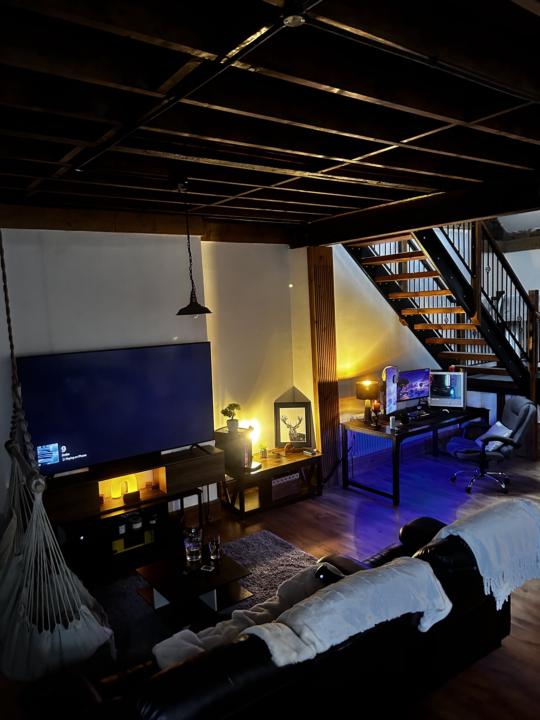
Setup design tips and tricks.
1. Ergonomics First - Desk height & chair: Make sure your desk and chair allow your elbows to be at roughly a 90-degree angle when typing. - Monitor position: Place your monitor so the top of the screen is at or slightly below eye level, about an arm’s length away. - Keyboard & mouse: Keep them close enough to avoid stretching but with enough space to move comfortably. 2. Cable Management - Use cable clips, sleeves, or Velcro ties to keep cables tidy and prevent clutter. - Consider a desk with built-in cable management or a cable tray underneath. - Wireless peripherals reduce cable clutter dramatically. 3. Lighting - Ambient lighting reduces eye strain. Try LED strips behind the monitor or under the desk for subtle backlighting. - Use adjustable desk lamps with warm light to avoid harsh glare. - RGB lighting is fun but keep it tasteful to avoid distractions. 4. Desk Space Optimization - Use monitor arms or stands to free up desk space underneath. - Keep only essential items on your desk to avoid clutter. - Add shelves or wall-mounted storage to keep peripherals and accessories organized. 5. Personalization - Add a mouse pad with a cool design or texture that suits your style. - Incorporate plants or artwork to make the space inviting and less sterile. - Use custom keycaps or a mechanical keyboard that matches your aesthetic. 6. Acoustics - Consider soundproofing foam panels if you game or stream. - Use a good quality microphone with a pop filter if you do calls or recordings. - Headphone stands or hooks keep your audio gear organized and accessible. 7. Cooling & Ventilation - Make sure your PC has good airflow; don’t block vents. - Keep your setup away from direct heat sources or sunlight to avoid overheating. - Dust regularly to keep components clean. 8. Dual Monitors & Multi-Screen Setup - Use matching monitors for a clean look. - Align monitors at the same height and angle for comfort. - Use software tools for easy window management across screens.
1
0
Oct '25 •
Recommended Products (Popular Brands)
- CableMod – custom sleeved PSU cables - J Channel Trays (from brands like IKEA, Amazon Basics) - 3M Command Cord Clips - Blue Lounge Cable Box (for power strip concealment) - ugreen / Anker USB hubs – to reduce visible device cables
1
0
Oct '25 •
PC Internal Cable Management Tips
1. Use Pre-Sleeved or Custom Cables - Looks cleaner than default PSU cables. - Brands like CableMod offer customizable sets for aesthetics. 2. Fan and RGB Hubs - Use a central hub for all fans or RGB devices, reducing the number of cables running to the motherboard. 3. Short Cable Extensions for Front I/O - If your case’s front panel cables are too long, shorten them with extension kits or manage excess at the rear. 4. Daisy-Chaining (When Possible) - Some fans and RGB strips support daisy-chaining, reducing clutter. 🔍 Pro-Level Finishing Touches - Symmetry & spacing – keep cables evenly spaced and parallel where visible. - Color coordination – match cables with your build’s color theme. - Avoid tight bends – this reduces cable strain and increases longevity. - Do a shake test – gently move cables to make sure they’re secure and don’t rattle or snag.
1
0
Oct '25 •
💡 Core Ideas for Flawless Cable Management
1. Plan Before You Plug - Sketch a layout or visualize where your components and cables will go. - Route cables logically based on your case design and connection points. - Keep longer cables for far connections; avoid unnecessary slack. 2. Use Modular Power Supplies - If you're building a PC, go for a modular or semi-modular PSU. You only plug in the cables you need, minimizing clutter. 3. Route Cables Behind the Motherboard Tray - Use the rear side of the case to hide as much as possible. - Most modern cases have ample routing space, cable cutouts, and tie-down points. 4. Utilize Cable Channels and Grommets - Take advantage of pre-installed cable channels or grommets in your PC case. - If your case lacks them, self-adhesive cable raceways can help. 5. Shorten & Bundle with Purpose - Coil long cables neatly using: 🧰 Essential Tools & Accessories Tool/Accessory Use Case Velcro cable ties Adjustable, reusable bundling Zip ties Strong, permanent bundling Cable combsOrganize sleeved cables (aesthetics + airflow)Cable sleeves Bundle multiple wires together Cable clips / adhesive mounts Secure cables to walls or desk underside Cable raceways/trays Hide and route under desk or case Heat shrink tubing For custom cables or extreme minimalism.
1
0
1-8 of 8