Activity
Mon
Wed
Fri
Sun
Apr
May
Jun
Jul
Aug
Sep
Oct
Nov
Dec
Jan
Feb
Mar
What is this?
Less
More
Memberships
Blender Beginners
309 members • Free
16 contributions to Blender Beginners

Jan 8 •
Hi
hey My name is Kohan I was born somewhere in New Zealand and I'd like to get to know everyone here I'm a solo dev looking for a good blender start and thought this community will be a great start

0 likes • Jan 20
Hi Kohan. Welcome to the group!
Jan 15 •
What's Actually Gonna Help You?
Hey... so this has been bugging me... I've been feeling like I'm not sure how to help you learn Blender the best... It feels like there is a lot of free awesome content out there, but we still have trouble learning! What's in your way? Does blender feel overwhelming? Is it that you don't have a project to practice with? What would make the biggest difference?
0 likes • Jan 20
As mentioned before, I’m looking for ideas, tips and tricks on animating clients logos. As a video producer and editor, I can monetize this service. I moved from motion VFX’s M02 plugin to blender and would love some ideas and guidance. Here is something I did in M02 and want to now work in blender easier. Thanks. https://www.instagram.com/reel/DNom7Siq_ZP/?igsh=NTc4MTIwNjQ2YQ==
0 likes • Dec '25
Logo design and anination ideas.
Dec '25 •
Modeling Course is comin' along!
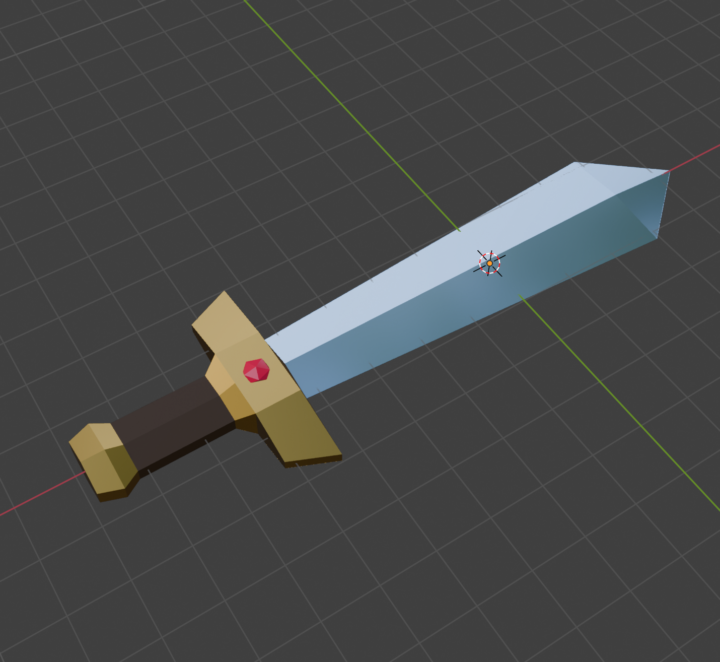
Here's a lil sword I'm workin' on! Any specific requests for simple objects to model in the course?
1 like • Dec '25
We'll need a shield when using the sword!🤴
Nov '25 •
Blender Course in Progress!
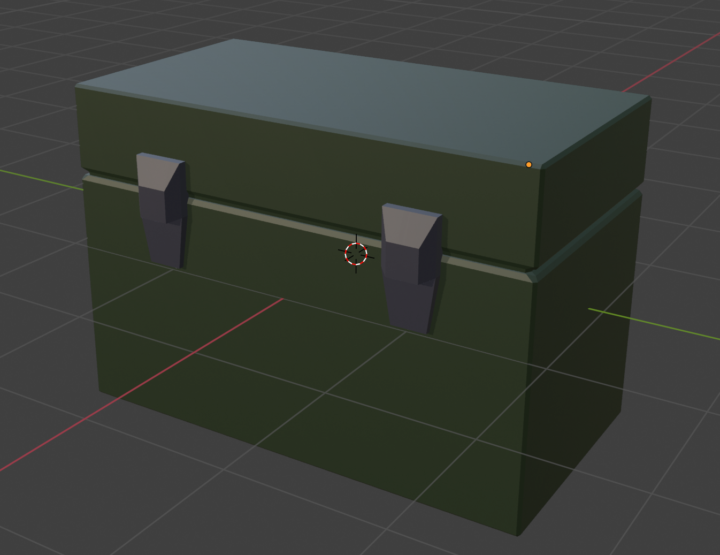
I'm so excited! Working on a low poly / Basic modeling course that teaches the basics of blender in really fun and practical ways! I'm having so much fun! I'll let you know updates as I have them!
0 likes • Nov '25
Thanks, Casey. Can you explain what Low -Poly is and if it is mostly used as a style?
0 likes • Dec '25
@Casey Faris Makes perfect sense. Thank you for your reply!
1-10 of 16

@richard-lesser-5560
Richard has over 30 years of experience in videography. From conceptualizing, directing, producing, and editing, to interviewing and marketing.
Active 45d ago
Joined Jul 27, 2025