Activity
Mon
Wed
Fri
Sun
Sep
Oct
Nov
Dec
Jan
Feb
Mar
Apr
May
Jun
Jul
Aug
What is this?
Less
More
Owned by Emma
Learn to create inspiring ebooks with AI, from children’s moral tales to adult fiction, complete with illustrations, storytelling tips.
Archi Savvy Pro
4 members • Free
Skill & Soul Studio
207 members • $2/month
What Is Skool?
1.2k members • Free
AI Pro Writers Studio
129 members • Free
Audiobook Creators 🎧⭐⭐⭐⭐⭐
114 members • Free
Crochet For Self-Care Oasis
83 members • Free
The Wildlife Lens
41 members • Free
Read SkoolMagazine Here
386 members • Free
Consistent Characters
249 members • Free
6 contributions to Skool Extensions 🧩

🔥
Apr 17 •
Translate Button
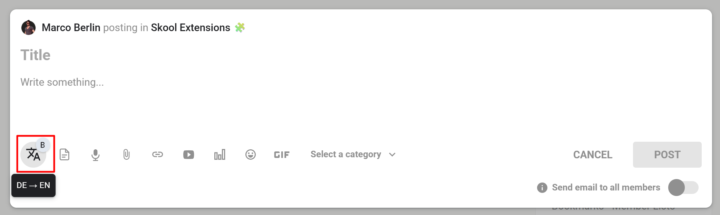
𝗧𝗿𝗮𝗻𝘀𝗹𝗮𝘁𝗲 𝗕𝘂𝘁𝘁𝗼𝗻 — 𝗢𝗻𝗲-𝗖𝗹𝗶𝗰𝗸 𝗧𝗿𝗮𝗻𝘀𝗹𝗮𝘁𝗶𝗼𝗻 𝗥𝗶𝗴𝗵𝘁 𝗶𝗻 𝘁𝗵𝗲 𝗘𝗱𝗶𝘁𝗼𝗿 Writing in a multilingual community usually means jumping to a translation tab, pasting your text, copying the result back, and losing your flow. The Translate Button puts translation directly inside every Skool editor — no context switch, no lost selection, no copy-paste dance. The translate icon lives on the Bold Button as a small badge: click the badge to toggle the main button between bold formatting and translation mode. Once you're in translate mode, select any text in the editor and click the button — the selection is instantly replaced with its translation. Your cursor stays in the same spot, so you can keep typing. The translation direction follows your interface language: if your UI is set to German, Spanish, or French, text translates to English; if your UI is English, text translates to German. The button shows up in every Skool editor that already supports the Bold Button — feed post composer, comment reply fields, reply-to-reply editors — and also in the native DM and Group Chat input. While a translation is running, the button dims briefly so you know it's working; failures stay silent to avoid interrupting your writing. Because the badge toggle is persistent, you can set the button to translate mode once and use it as a pure translation tool throughout your session, or flip back to bold formatting whenever you need it. --- Ü𝗯𝗲𝗿𝘀𝗲𝘁𝘇𝗲𝗻-𝗕𝘂𝘁𝘁𝗼𝗻 — 𝗘𝗶𝗻-𝗞𝗹𝗶𝗰𝗸-Ü𝗯𝗲𝗿𝘀𝗲𝘁𝘇𝘂𝗻𝗴 𝗱𝗶𝗿𝗲𝗸𝘁 𝗶𝗺 𝗘𝗱𝗶𝘁𝗼𝗿 Schreiben in einer mehrsprachigen Community bedeutet meistens: Tab mit Übersetzer öffnen, Text einfügen, Ergebnis zurückkopieren — und dabei den Schreibfluss verlieren. Der Übersetzen-Button bringt die Übersetzung direkt in jeden Skool-Editor: kein Kontextwechsel, keine verlorene Markierung, kein Copy-Paste-Tanz. Das Übersetzen-Symbol sitzt als kleines Badge am Bold-Button: Ein Klick auf das Badge schaltet den Haupt-Button zwischen Fettschrift-Modus und Übersetzungs-Modus um. Im Übersetzungs-Modus markierst du beliebigen Text im Editor und klickst den Button — die Markierung wird sofort durch die Übersetzung ersetzt. Dein Cursor bleibt an derselben Stelle, sodass du einfach weitertippen kannst. Die Übersetzungsrichtung richtet sich nach deiner Oberflächensprache: Bei deutscher, spanischer oder französischer UI wird nach Englisch übersetzt, bei englischer UI nach Deutsch.

🔥
6 likes • Apr 17
Danke!
🔥
Mar 26 •
Statement: Working with Skool (not against it)
In the age of automation and AI, so much is possible. You can see how fast this extension is evolving. However, one thing is very important to me: Every feature I add to the extension is intended to support the Skool ecosystem. If it turns out that a feature doesn't align with Skool’s vision, I will remove it immediately. Please ignore my previous post. I have deleted it on purpose. --- In Zeiten von Automatisierungen und KI ist extrem viel möglich. Ihr seht, wie schnell sich die Extension entwickelt. Eines ist mir aber sehr wichtig: Jedes Feature, das ich in die Extension einbaue, soll im Sinne von Skool sein. Wenn sich herausstellen sollte, dass ein Feature mal nicht passt, werde ich es auch wieder entfernen. Den Post von vorhin bitte entsprechend ignorieren. Den habe ich mit Absicht wieder gelöscht.
🔥
7 likes • Mar 26
Make sense!
🔥
Mar 24 •
Skool CRM (VIP Feature 💎)
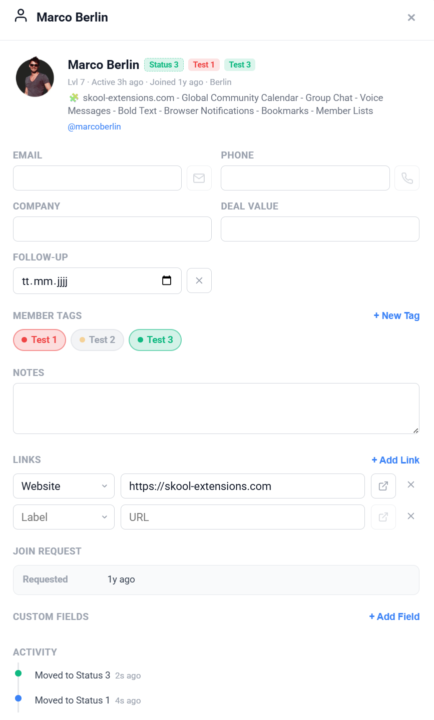
𝗖𝗥𝗠 — 𝗬𝗼𝘂𝗿 𝗣𝗲𝗿𝘀𝗼𝗻𝗮𝗹 𝗖𝗼𝗻𝘁𝗮𝗰𝘁 𝗗𝗮𝘁𝗮𝗯𝗮𝘀𝗲 𝗳𝗼𝗿 𝗖𝗼𝗺𝗺𝘂𝗻𝗶𝘁𝘆 𝗠𝗲𝗺𝗯𝗲𝗿𝘀 Skool shows you who's in your community, but it doesn't give you a place to store the details that matter for your business — phone numbers, company names, deal values, or follow-up dates. CRM adds a full contact management layer right inside Skool. Click any member in the Members Panel or on a Pipeline card to open their CRM card. Each card stores email, phone, company, deal value, follow-up date, and free-text notes. All fields auto-save as you type — no submit button needed. Set a follow-up date and it appears as a badge on the member's Pipeline card. Overdue follow-ups pulse in red so nothing slips through the cracks. The follow-up date field uses a native date picker for quick entry. Need to track data that doesn't fit the standard fields? Add unlimited custom fields with your own labels and values — perfect for tracking contract status, referral source, subscription tier, or anything else. Each custom field can be renamed or deleted individually. Store links for each member — LinkedIn profiles, websites, contracts, or any URL. Links auto-detect from the member's Skool profile and can be opened in a new tab directly from the CRM modal. Add, edit, or remove links at any time. If the member submitted a join request with survey answers, those appear in a dedicated section of the CRM profile — including the date of the request and the location from which they applied. You can also open a member's CRM card via the right-click context menu on any username or avatar across Skool. All CRM data is stored locally in your browser for privacy and synced via Cloud Sync when enabled. The feature can be toggled on or off in the Toolkit Settings under the Admin section. When disabled, CRM buttons and click-to-open behavior are hidden, but your data is preserved. --- 𝗖𝗥𝗠 — 𝗗𝗲𝗶𝗻𝗲 𝗽𝗲𝗿𝘀ö𝗻𝗹𝗶𝗰𝗵𝗲 𝗞𝗼𝗻𝘁𝗮𝗸𝘁𝗱𝗮𝘁𝗲𝗻𝗯𝗮𝗻𝗸 𝗳ü𝗿 𝗖𝗼𝗺𝗺𝘂𝗻𝗶𝘁𝘆-𝗠𝗶𝘁𝗴𝗹𝗶𝗲𝗱𝗲𝗿 Skool zeigt dir, wer in deiner Community ist, aber es gibt keinen Ort, um die Details zu speichern, die für dein Business wichtig sind — Telefonnummern, Firmennamen, Deal-Werte oder Follow-up-Termine. CRM fügt eine vollständige Kontaktverwaltung direkt in Skool hinzu.
🔥
7 likes • Mar 24
Can we have a beta version before the release?
🔥
5 likes • Mar 24
@Marco Berlin Thanks
🔥
Mar 24 •
Activity Flame
𝗔𝗰𝘁𝗶𝘃𝗶𝘁𝘆 𝗙𝗹𝗮𝗺𝗲 — 𝗧𝗿𝗮𝗰𝗸 𝗬𝗼𝘂𝗿 𝗗𝗮𝗶𝗹𝘆 𝗘𝗻𝗴𝗮𝗴𝗲𝗺𝗲𝗻𝘁 Ever wonder how active you really are in your Skool community? The Activity Flame puts an animated flame icon right in your toolbar that shows your daily activity at a glance. A ring of 10 segments surrounds the flame and fills up as you post, comment, and interact throughout the day. The flame itself changes color and intensity — from grey when inactive to a bright, vivid orange at full activity. Click the flame to refresh your count and watch a satisfying fire animation. Hit 10/10 and a confetti celebration fires off. Why does this matter? Skool awards a flame badge next to your profile name once you reach a 30-day activity streak. The Activity Flame helps you monitor your daily progress so you never accidentally break your streak. Keep an eye on your ring, stay consistent, and earn that permanent flame badge. The feature refreshes automatically every few minutes and can be toggled on or off in the Toolkit Settings. --- 𝗔𝗸𝘁𝗶𝘃𝗶𝘁ä𝘁𝘀-𝗙𝗹𝗮𝗺𝗺𝗲 — 𝗩𝗲𝗿𝗳𝗼𝗹𝗴𝗲 𝗱𝗲𝗶𝗻 𝘁ä𝗴𝗹𝗶𝗰𝗵𝗲𝘀 𝗘𝗻𝗴𝗮𝗴𝗲𝗺𝗲𝗻𝘁 Fragst du dich manchmal, wie aktiv du wirklich in deiner Skool-Community bist? Die Aktivitäts-Flamme zeigt dir ein animiertes Flammen-Icon direkt in deiner Toolbar, das deine tägliche Aktivität auf einen Blick sichtbar macht. Ein Ring aus 10 Segmenten umgibt die Flamme und füllt sich, während du postest, kommentierst und im Laufe des Tages interagierst. Die Flamme selbst ändert Farbe und Intensität — von grau bei Inaktivität bis hin zu einem leuchtenden Orange bei voller Aktivität. Klicke auf die Flamme, um deinen Zähler zu aktualisieren und eine Feueranimation zu sehen. Bei 10/10 wird eine Konfetti-Feier ausgelöst. Warum ist das wichtig? Skool vergibt ein Flammen-Badge neben deinem Profilnamen, sobald du einen 30-Tage-Aktivitäts-Streak erreichst. Die Aktivitäts-Flamme hilft dir, deinen täglichen Fortschritt im Blick zu behalten, damit du deinen Streak nicht versehentlich unterbrichst. Behalte deinen Ring im Auge, bleib konsequent und verdiene dir das permanente Flammen-Badge.

🔥
8 likes • Mar 24
🔥🔥🔥
🔥
Mar 23 •
Sales Pipeline (VIP Feature 💎)
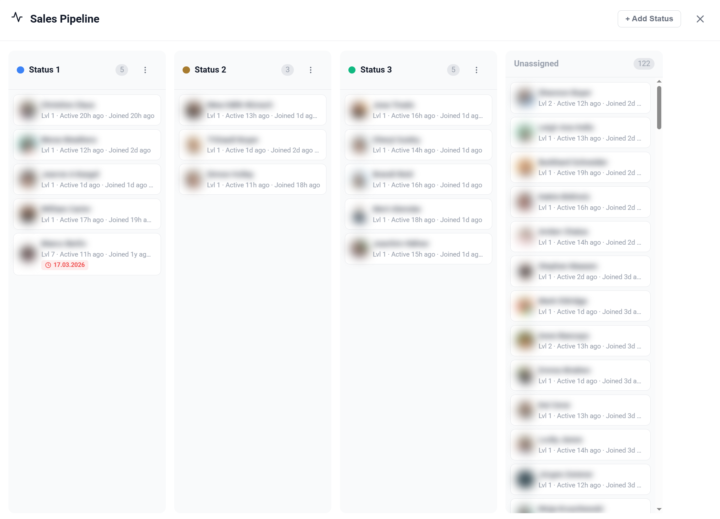
𝗦𝗮𝗹𝗲𝘀 𝗣𝗶𝗽𝗲𝗹𝗶𝗻𝗲 — 𝗧𝗿𝗮𝗰𝗸 𝗠𝗲𝗺𝗯𝗲𝗿𝘀 𝗧𝗵𝗿𝗼𝘂𝗴𝗵 𝗬𝗼𝘂𝗿 𝗙𝘂𝗻𝗻𝗲𝗹 Managing a community means knowing where each member stands in your sales process. The Sales Pipeline gives you a visual, Kanban-style board to track members through customizable stages — right inside Skool. Open the pipeline from the dedicated button in your Members Panel. You'll see a board with columns representing your pipeline stages. Each member card shows the avatar, name, and community. Drag and drop members between columns to update their status, or assign a status directly from the member's right-click context menu in the Members Panel. You have full control over your pipeline stages: create new statuses, rename them, assign custom colors, and drag to reorder. Default stages like "Lead", "Contacted", "Negotiation", and "Closed" are provided to get you started — but you can customize everything to match your actual sales process. Pipeline status badges appear next to member names throughout the platform — in the Members Panel, in comment threads, and on profile cards — so you always have context without opening the pipeline board. The badges use your custom colors for instant visual recognition. The pipeline also works cross-community: members from all your cached communities appear in the board, and you can filter by community to focus on a specific group. All pipeline data syncs via Cloud Sync, so your stages and assignments are available across browsers and devices. The feature can be toggled on or off in the Toolkit Settings under the Admin section. --- 𝗦𝗮𝗹𝗲𝘀 𝗣𝗶𝗽𝗲𝗹𝗶𝗻𝗲 — 𝗠𝗶𝘁𝗴𝗹𝗶𝗲𝗱𝗲𝗿 𝗱𝘂𝗿𝗰𝗵 𝗱𝗲𝗶𝗻𝗲𝗻 𝗙𝘂𝗻𝗻𝗲𝗹 𝘃𝗲𝗿𝗳𝗼𝗹𝗴𝗲𝗻 Eine Community zu managen bedeutet zu wissen, wo jedes Mitglied in deinem Verkaufsprozess steht. Die Sales Pipeline gibt dir ein visuelles Kanban-Board, um Mitglieder durch anpassbare Stufen zu verfolgen — direkt in Skool. Öffne die Pipeline über den dedizierten Button in deinem Members Panel. Du siehst ein Board mit Spalten, die deine Pipeline-Stufen darstellen. Jede Mitgliederkarte zeigt Avatar, Name und Community. Ziehe Mitglieder per Drag & Drop zwischen Spalten, um ihren Status zu aktualisieren, oder weise einen Status direkt über das Rechtsklick-Kontextmenü im Members Panel zu.
🔥
4 likes • Mar 23
Great! thanks 💥
1-6 of 6

🔥
@emmawratten
Lawyer by day, I unwind through sketching and storytelling. Excited to grow my AI skills, explore new ideas, and have fun with it.
Active 5h ago
Joined Mar 20, 2026
Cambridge, United Kingdom
Powered by