Activity
Mon
Wed
Fri
Sun
Nov
Dec
Jan
Feb
Mar
Apr
May
Jun
Jul
Aug
Sep
Oct
What is this?
Less
More
Owned by Claudius
The multilingual Swiss community for skoolers in Switzerland – 🇩🇪 Deutsch 🇬🇧 English 🇫🇷 Français 🇮🇹 Italiano
Community Lab
78
$49/m
Claude Masterclass
690
5.0
$25/m
Skoolers
152.6k
Free
Panda for Skool
227
5.0
$37/m
Skooligans
623
Free
Auswandern & Online Business
999
5.0
Free
Agent J
2.6k
Free
JamUnity®Coffeehouse
8
Free
10 contributions to Skool Extensions 🧩

🔥
Jul 29 •
Background Changer (from level 3)
𝗕𝗮𝗰𝗸𝗴𝗿𝗼𝘂𝗻𝗱 — 𝗥𝗲𝗽𝗹𝗮𝗰𝗲 𝘁𝗵𝗲 𝗦𝗸𝗼𝗼𝗹 𝗽𝗮𝗴𝗲 𝗯𝗮𝗰𝗸𝗴𝗿𝗼𝘂𝗻𝗱 𝘄𝗶𝘁𝗵 𝗮 𝗴𝗿𝗮𝗱𝗶𝗲𝗻𝘁, 𝘆𝗼𝘂𝗿 𝗼𝘄𝗻 𝗶𝗺𝗮𝗴𝗲 𝗼𝗿 𝗮 𝗱𝗮𝗶𝗹𝘆 𝗽𝗵𝗼𝘁𝗼 Skool ships one page background, and it is the same for everyone. The Background feature replaces it with something you pick: thirteen ready-made gradients and mesh blends (Aurora, Sunset, Ocean, Midnight, Candy, Mint and more), a two-colour gradient you mix yourself with a free angle, an image you upload, or a photo that changes every single day. Four daily-photo sources are available: Bing Daily, Windows Spotlight, Wikimedia Picture of the Day and NASA's Astronomy Picture of the Day. Each fetches a fresh image once a day, so the page looks different every morning without you touching a setting. Preview thumbnails load for all sources up front — including the ones you have not selected — so you see the actual picture before choosing. The feature unlocks with your level in the Skool Extensions community. Level 3 opens the Background itself along with all gradients, your own colours and your own image. The daily-photo sources follow: Bing and Spotlight at level 4, Wikimedia and NASA at level 5. Locked tiles stay visible with a grey wash and a level badge — click the badge and you land on the community leaderboard, where you can see your standing and what the next level takes. Two sliders control how the page sits on top of the image. Transparent cards sets how much of the background shows through Skool's cards and panels, and Blurred controls how soft the photo behind them gets. Both update live while you drag, and dark mode keeps its own slightly stronger opacity so the balance between the two modes survives a single slider. On photo backgrounds, readability is handled for you: the text colour is chosen by real WCAG contrast against the image rather than a rough brightness guess, and text sitting directly on the background — native header links, the pin strip footer — gets a fine outline so it stays legible over busy areas. Gradients and mesh blends are left alone; they do not need it.


🔥
8 likes • Jul 29
Cool incentive @Marco Berlin !
🔥
7 likes • Jul 29
oh I see I'm already there – really nice! 🙏🏻
🔥
Jul 26 •
Final Days: VIP $47 → $69 + 30% Affiliate
𝗧𝘄𝗼 𝗯𝗶𝗴 𝘂𝗽𝗱𝗮𝘁𝗲𝘀 𝘆𝗼𝘂 𝗱𝗼𝗻'𝘁 𝘄𝗮𝗻𝘁 𝘁𝗼 𝗺𝗶𝘀𝘀 ... 🚀 I've permanently increased the affiliate commission from 20% to 30%. Whether you're already recommending Skool Extensions or planning to start, every referral is now more valuable than ever. There's one more important update: 📅 On August 8, the VIP price increases from $47 to $69/month. If you've been waiting to unlock the premium features for Community Owners & Admins, this is your last chance to secure the current $47/month price. Quick recap: ✅ Affiliate commission is now 30% ⏳ VIP increases from $47 → $69 on August 8 👉 JOIN VIP now --- 𝗭𝘄𝗲𝗶 𝗴𝗿𝗼ß𝗲 𝗨𝗽𝗱𝗮𝘁𝗲𝘀, 𝗱𝗶𝗲 𝗱𝘂 𝗻𝗶𝗰𝗵𝘁 𝘃𝗲𝗿𝗽𝗮𝘀𝘀𝗲𝗻 𝘀𝗼𝗹𝗹𝘁𝗲𝘀𝘁 ... 🚀 Ich habe die Affiliate-Provision dauerhaft von 20 % auf 30 % erhöht. Wenn du Skool Extensions bereits weiterempfiehlst oder damit starten möchtest, ist jetzt der beste Zeitpunkt. Jede Empfehlung ist ab sofort deutlich mehr wert. Außerdem gibt es eine wichtige Änderung: 📅 Am 8. August steigt der VIP-Preis von 47 $ auf 69 $ pro Monat. Wenn du schon länger die Premium-Features für Community Owner & Admins freischalten möchtest, ist jetzt der perfekte Zeitpunkt. Kurz zusammengefasst: ✅ Affiliate-Provision jetzt bei 30 % ⏳ VIP steigt am 8. August von 47 $ auf 69 $ 👉 Jetzt VIP sichern

🔥
5 likes • Jul 26
[attachment]
🔥
Jun 8 •
Chat Panel + Chat Search
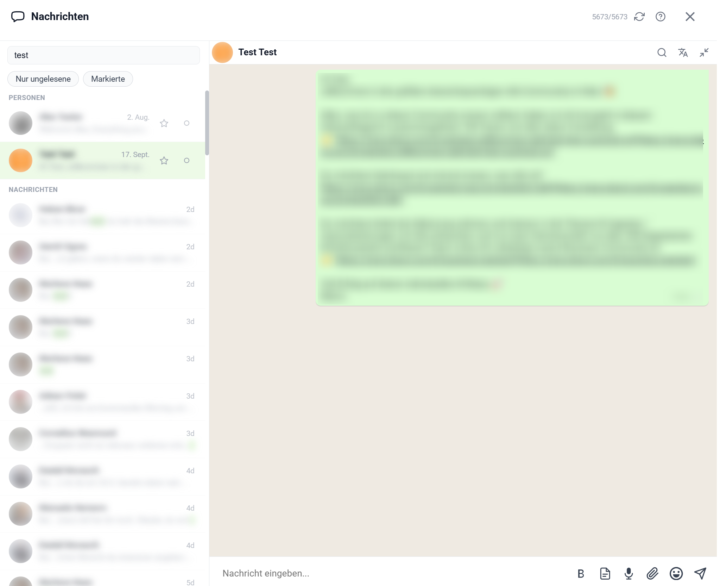
𝗦𝗸𝗼𝗼𝗹 𝗖𝗵𝗮𝘁 — 𝗬𝗼𝘂𝗿 𝗪𝗵𝗼𝗹𝗲 𝗗𝗠 𝗜𝗻𝗯𝗼𝘅, 𝗥𝗲𝘄𝗼𝗿𝗸𝗲𝗱 𝗜𝗻𝘁𝗼 𝗢𝗻𝗲 𝗙𝗮𝘀𝘁 𝗣𝗮𝗻𝗲𝗹 Skool's own chat lives in a long sidebar list: to read a conversation you click away to a separate page, there's no way to filter or pin the threads that matter, and the search box only matches member names. Skool Chat rebuilds the whole direct-message experience as a single toolkit panel — your conversations on one side, the open chat right next to them, and everything you'd otherwise hunt for one click away. Open it from its own icon in the toolbar, where a live badge counts your unread DMs. The panel shows a compact list of every conversation — avatar, name, time of the last message, and a one-line preview, with unread threads clearly marked. Click any row and the conversation opens inline, right inside the panel, instead of throwing you out to skool.com. A back arrow returns you to the list, and you can pin the panel open so it stays put while you keep browsing Skool. Reading and writing happen in the same place. Type a message and send it with Enter — Shift+Enter for a line break — and it appears instantly while it's on its way; new incoming messages show up on their own without a refresh. The composer carries everything you need: an emoji picker that remembers your recents, a bold button for real bold text, your saved text templates, and a translate button. Attach a file with the paperclip — images, PDFs, Word, Excel, ZIP and more — or just drag it straight onto the conversation and drop it. Voice and video messages record right from the input bar. Two filters sit above the list. "Unread only" strips it down to threads you haven't read yet — invaluable in a busy inbox — and "Bookmarked only" shows just the conversations you've starred. The two combine, so you can see, say, only the unread messages among your important contacts. A star on every row bookmarks that conversation, and your bookmarks are cloud-synced — the threads you starred on your laptop are starred on your desktop too. You can mark any chat read or unread by hand, and that state stays consistent across every open tab and device.
🔥
4 likes • Jun 8
Never running out of ideas @Marco Berlin 👌🏻
🔥
May 22 •
We are all pupils…
…at least according to the Skool Extension translation. My Swiss Skoolers community is described as: Die mehrsprachige Schweizer Community für Schüler in der Schweiz Skoolers become pupils 🫣
🔥
1 like • May 22
@Marco Berlin great idea
🔥
May 17 •
Guided Tour
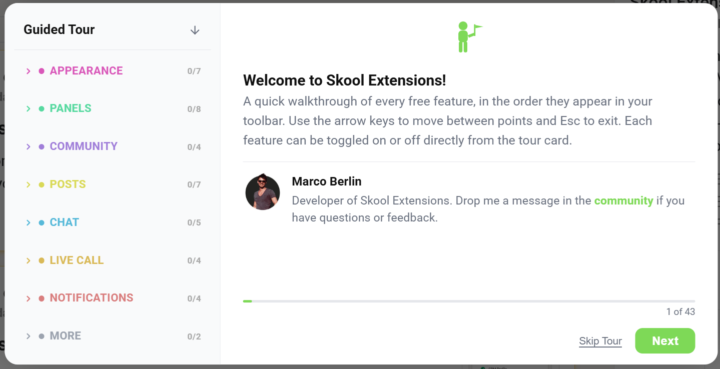
𝗚𝘂𝗶𝗱𝗲𝗱 𝗧𝗼𝘂𝗿 — 𝗔 𝗵𝗮𝗻𝗱𝘀-𝗼𝗻 𝘄𝗮𝗹𝗸𝘁𝗵𝗿𝗼𝘂𝗴𝗵 𝗼𝗳 𝗲𝘃𝗲𝗿𝘆 𝗘𝘅𝘁𝗲𝗻𝘀𝗶𝗼𝗻 𝗳𝗲𝗮𝘁𝘂𝗿𝗲, 𝘀𝗵𝗼𝘄𝗻 𝗹𝗶𝘃𝗲 𝗶𝗻𝘀𝗶𝗱𝗲 𝗦𝗸𝗼𝗼𝗹 The Skool Toolkit has grown to over sixty features. The settings panel lists them all, but a name and a one-line description don't really show you what a feature looks like. The Guided Tour walks you through the whole toolkit step by step, right inside your own Skool community, with each feature highlighted live on the page where it actually lives. There are two versions: a Free Tour covering everything in the free tier, and a separate Premium Tour for premium features. Both launch the same way — from the green "Start Tour" button in the welcome popup, the toolbar button, or the entry at the top of the settings panel. If you exit halfway, the next time you open the tour it offers to pick up right where you left off. What sets it apart from a static screenshot tutorial is that it never leaves Skool. When the next step is a Discovery feature, the tour navigates you to Discovery. When it's a setting that only makes sense in a live call, it routes you into a call. Each step paints a green frame around the actual element being explained and dims everything else with a soft spotlight, so your eye lands exactly where it should. You see the feature in its real context with your own data — not in a mock-up. The tour card sits at the bottom of the screen and stays out of your way. It has a short title, a few bullet points, an "Enable this feature" switch for features with an on/off setting, and back/next buttons. Toggle a feature inside the card and your choice sticks — switch off Custom Tooltips mid-tour and they stay off when the tour ends. For features that depend on a list (which communities get the translate button, which languages to skip), the same picker from the settings panel is built right into the card, so you can configure as you go. A small link icon in the top-right corner opens the feature's full announcement post in a new tab if you want the deep dive. Translation steps get a clever twist. Demoing automatic translation only works if the page is in a language you don't already speak — translating English into English shows nothing. So at the Discovery step, the tour filters Discovery by a language other than yours; at the about-page step, it routes you to a foreign-language community (German by default, Italian if you already speak German). The moment you land on the step, you actually see the toolkit translating real content into your language.
🔥
2 likes • May 17
[attachment]
1-10 of 10

🔥
@claudius
Coworking Evangelist at CreativeSpace | Founder of European Coworking Day | Chief Art Enthusiast at artagenda.com | Head of mylocalpresence.com
Active 10h ago
Joined Mar 23, 2026
St.Gallen, Switzerland
Powered by