Activity
Mon
Wed
Fri
Sun
Dec
Jan
Feb
Mar
Apr
May
Jun
Jul
Aug
Sep
Oct
Nov
What is this?
Less
More
Owned by 金睿
⚠️ 警告:千萬不要進來! 除非你想提早下班、增加被動收入。 加入後你會被迫免費下載自研「AI提示詞+」插件,還會不小心解鎖 100+ 職場與投資專用 Prompt。 這裡專門教人如何用 AI 偷懶並構建自動化財富。 如果你很享受加班和手動盯盤的痛苦,請立即離開!
這是一個專注於 AI + 自動化工具,幫你打造專屬投資助理,並大幅提升工作效率的專屬社群。 加入我們,你可以: ✅ 快速篩選市場資訊,找到真正有潛力的投資標的 ✅ 每週省下 10+ 小時重複工作,把時間留給高價值決策 ✅ 與志同道合的人交流,不再單打獨鬥
5 contributions to AI Automation Society

💎
Dec '25 •
Happy Holidays Everyone and Merry Christmas🎄
This is a great time to reflect on the past year, set a few intentions for the year ahead, and most importantly rest, recharge, and spend time with family. I know I will be. The AI space will still be here when we get back! Cheers, Nate


🍀
8 likes • Dec '25
Merry Christmas!
💎
Sep '25 •
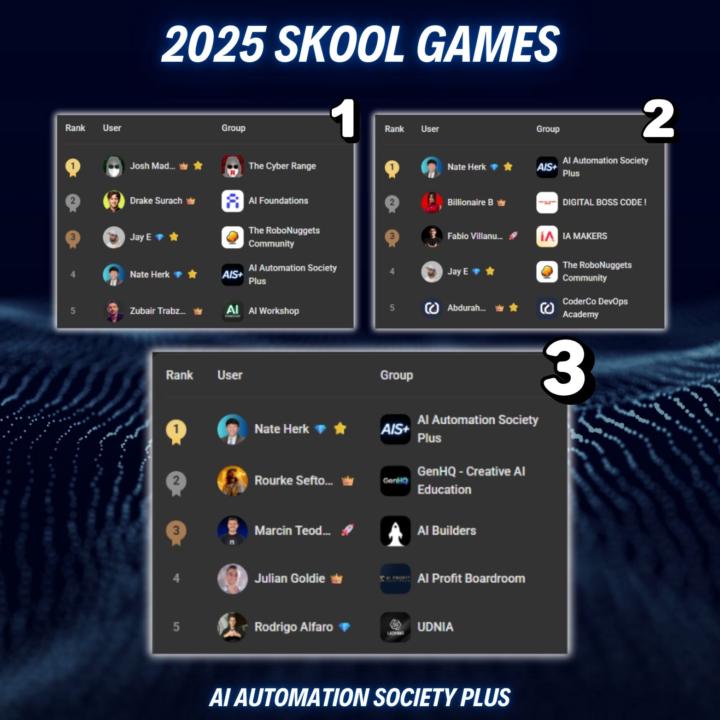
🎉 AIS+ Just Won the Skool Games
AI Automation Society Plus just won Q3 Skool Games, back-to-back 1st place finished and top 5 in all three quarters of 2025. This wouldn't be possible without each of you helping us make AI Automation Society a space for everyone. Truly grateful for this amazing community we're building together. Quick heads up: Plus pricing increases in Q4. If you've been thinking about joining, now's the time. We'll give everyone a full week's notice before any price changes. Check it out here. Thank you all for the incredible support. You guys are the best! Cheers, Nate
🍀
5 likes • Sep '25
🎊 congratulations
💎
May '25 •
🚀 New Video: 25 Hidden n8n Features That Save Hours of Work
In this video, I’m sharing 25 tips, tricks, and hidden features in n8n that I’ve discovered over the past year, things I really wish I knew when I started. These hacks will help you build smarter workflows, save time, and unlock a whole new level of automation. Whether you're just getting started or you're deep into complex automations, this list starts with simple tips and gradually ramps up to more advanced techniques, so stick around and see how many you already know. Enjoy learning hacks like these? Let's chat here
🍀
3 likes • May '25
25 n8n Hacks: 1. Use Equals (=) to Quickly Switch to Expression Mode Before typing in a Fixed Value field, press = to switch it to Expression mode. 2. Pin Data Pin node output data to avoid re-running costly or slow nodes, like API calls. Press P when a node is selected to quickly pin or unpin. 3. Mock Data Click the pencil icon on a node or trigger to set test data for workflow testing. Especially useful for testing subworkflows triggered by other workflows. 4. Move Between Nodes In a node's configuration panel, move the mouse to the left or right edge to switch between node settings. In the workflow view, use arrow keys to select nodes and Enter to open settings. 5. Deactivate Nodes Click the three dots menu on a node or press D to deactivate or activate it. Helps resolve "resolve outstanding issues" prompts before triggering. 6. Organization Sticky Notes: Add using Shift + S or the menu. Double-click to edit, supports Markdown, can change color for categorization. Rename Nodes: Click into the node and rename at the top, or select the node and press F2 for quick renaming. 7. Workflow History Click the timer icon to view previous versions of the workflow. Allows restoring, downloading, or cloning older versions. 8. Quickly Add Node Press Tab anywhere in the workflow to quickly open the node selection menu and search. 9. Disable n8n Attributions In nodes like Email, Telegram, or Slack, find the setting (e.g., "append attribution," "include link to workflow") to remove the "sent by n8n" message. 10. Get Current Date and Time Use {{ $now }} in an Expression field to access the current date and time. Can use .format() to format the output. 11. Save API Credentials When setting up authentication in nodes like HTTP Request, save credentials for secure storage and reuse. Prevents exposing API keys when sharing workflows. 12. Error Workflows Use the "Error Trigger" node to link to active workflows; it triggers a secondary workflow if the main one errors.
💎
May '25 •
Bad news (sorry guys)
I have some news I need to share with you... Our AI Automation Society Plus membership price is going up starting this Sunday at Midnight Eastern. I've held off on this price increase as long as possible, but with the continuous updates to our courses and the growing value of our community calls, we need to align with the market. The good news? You can still lock in the current $78/month rate before Sunday – and that price will never increase for you as long as you remain a member. This means: - While others pay the new higher rate (or even more in the future) - You'll keep paying just $78/month – forever - You'll get all future updates and additions at no extra cost - You'll receive FREE tech support for your automations when you get stuck - You'll still be eligible for our weekly cash prizes that can make your membership effectively FREE This isn't some manufactured urgency – it's a genuine heads up from me to you. Want to lock in the $78/month rate before it disappears forever? Click here to secure your membership at the current rate. Once you're in at $78/month, that rate is yours to keep – no matter how high we raise prices in the future. But you need to join before Sunday at Midnight Eastern. I’ll see you inside!
🍀
3 likes • May '25
I’m a beginner and have a few questions to ask. First, can I pay for a one-month subscription now, and if I decide to upgrade to an annual subscription in the future, will I still be able to get the annual fee of $78 with a 20% discount? Second, is the weekly live stream schedule fixed? In which time zone and at what time does it take place? Lastly, regarding the weekly rewards mentioned on the introduction page, how can I obtain them?
💎
Oct '24 •
Welcome! Introduce yourself + share a career goal you have 🎉
Let's get to know each other! Comment below sharing where you are in the world, a career goal you have, and something you like to do for fun. 😊
🍀
1 like • May '25
Hi everyone! I'm Garyo from Taiwan. I have a little Youtube channel that is focus on Program Trading in Mandarin. I come here to learn more about AI workflow and maybe create some ausom invest AI workflow in the future. And I also want to learn English in this cummunity.(Because my English is not very well.)
1-5 of 5
🍀
@75439793
嗨大家好,我是G股團長 金睿,台大理工所畢業,18年以上程式交易經驗💻📈,現在成天專研AI工具的魔人🧙♂️🤖!
Online now
Joined Apr 24, 2025
台中市
Powered by