

🔥
7d •
Weekly AI Training – LIVE This Wednesday! 🎉
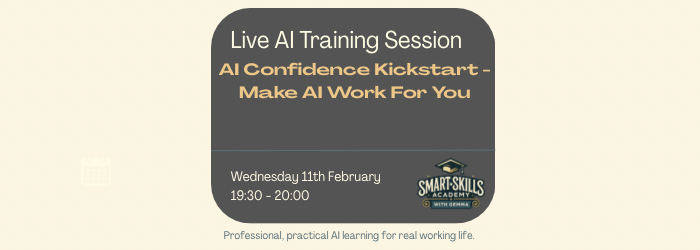
Week 1 – Free session This Wednesday I’m hosting the first of my weekly Smart Skills Academy AI training sessions, and this week’s session is FREE!. AI Confidence Kickstart - A practical, friendly intro to AI that shows what it can really do, how it saves time, and how to start using it with confidence and purpose. Perfect for beginners, cautious users, or anyone wanting to feel more in control of AI. Here’s how to join: 1️⃣ Free for everyone this week This session is open to all members. Future sessions will be free for Skool VIP members, or available as a paid ticket. 2️⃣ Add it to your diary Head to the Skool calendar and add the placeholder so you’re ready to join live on Wednesday night. 3️⃣ Join live and take part Watch live, learn, ask questions, and leave feeling clearer and more confident about AI. I’d love to see you there 😊 Gemma

4d •
Intro
Good Morrow my fellow classmates. My name is Jeff Padgett although most people just call me Padgett. You can call me whatever just don't call me late for supper. I've practiced law for the last 25 years mainly criminal defense but I have done things in the music world and at one time was an NFL agent. But now I want to get into book publishing and teaching in addition to some crafty POD. I anticipate starting a community in the future. It'll be a mash-up of law and how law affects EVERY industry and aspect of our lives. Until then, I'm just going to hang out and soak up some new skills knowledge. Good to meet Y'all. Have a blessed one.
🔥
9h •
Weekly AI Training – LIVE This Wednesday! 🎉
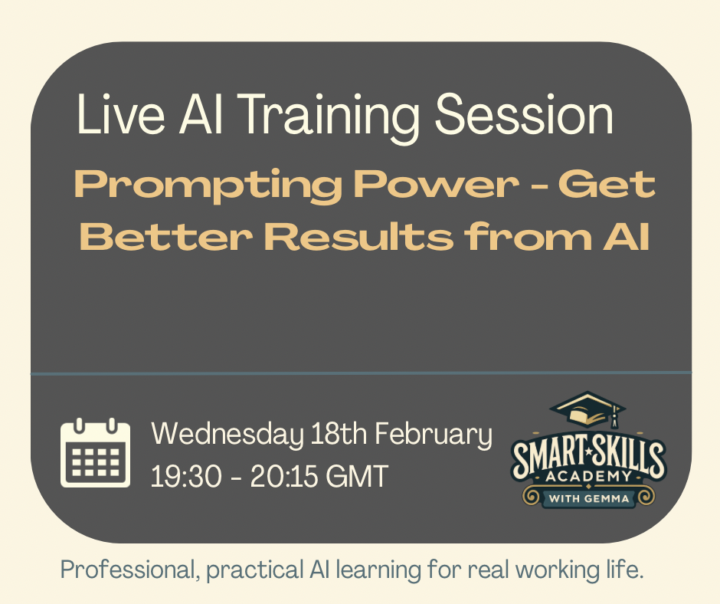
Week 2 - Prompting Power This Wednesday I’m hosting another live Smart Skills Academy AI training session. Learn simple but powerful prompting techniques to get clearer, more accurate and useful results from AI. Discover how to structure effective prompts and make AI a genuinely helpful partner in your everyday work. Here’s how to join: 1️⃣ Free for Skool VIP members or buy your ticket – £30 Skool VIP members can attend at no cost. Non-VIP members can purchase a ticket for £30 at: www.smartskillsacademy.net/event-list 2️⃣ Add it to your diary Head to the Skool calendar and add the placeholder so you’re ready to join the live session on Wednesday night. 3️⃣ Join live and take part Watch live, learn, ask questions, and build confidence using AI tools in a supportive setting. I’d love to see you there 😊 Gemma
🔥
2d •
Happy Valentines Day
Whether you are taken, single or looking to mingle - happy with your situation or looking to change it, my message to you today is; Love others deeply. Care generously. Give freely. But make sure you extend that same kindness to yourself too ❤️ Let’s show each other some love with GIF’s today ❤️

🔥
3d •
Too many notifications on Skool? Here’s how to turn the noise down
Skool can feel really noisy at first, especially if you are in multiple communities and your new. Let me reassure you, you will quickly get used to the flow, but for sure it helps to turn the volume down a bit! The good news is you can control notifications in two main ways: 1. Change notifications per community (group by group) 2. Turn off “like” notifications (the biggest overwhelm trigger for most people) 3. Unfollowing people (stop receiving notifications each time someone posts) 𝗖𝗵𝗮𝗻𝗴𝗲 𝗻𝗼𝘁𝗶𝗳𝗶𝗰𝗮𝘁𝗶𝗼𝗻𝘀 𝗽𝗲𝗿 𝗰𝗼𝗺𝗺𝘂𝗻𝗶𝘁𝘆 (𝗴𝗿𝗼𝘂𝗽 𝗯𝘆 𝗴𝗿𝗼𝘂𝗽) On desktop (laptop or computer) 1. Click your profile picture (top right) 2. Click Settings 3. In the left menu, click Notifications 4. Find Group notifications 5. Next to the community you want to change, click Change 6. Switch off anything you do not want (for example: digest emails, notification emails, admin announcements, event reminders, and so on) 7. Repeat for each community you are in (this is the key bit) On mobile (Skool app) 1. Tap your profile icon 2. 3 Little dots at the top right, Tap Settings 3. Tap Notifications 4. Under Group notifications, choose the community and adjust what you receive 𝗧𝘂𝗿𝗻 𝗼𝗳𝗳 “𝗹𝗶𝗸𝗲” 𝗻𝗼𝘁𝗶𝗳𝗶𝗰𝗮𝘁𝗶𝗼𝗻𝘀 (𝗶𝗻 𝗴𝗲𝗻𝗲𝗿𝗮𝗹) On desktop 1. Click your profile picture (top right) 2. Click Settings 3. Click Notifications 4. Find the setting for likes (likes on your post or comment) 5. Toggle it off On mobile 1. Tap your profile icon 2. 3 Little dots at the top right, Tap Settings. 3. Notifications 4. Turn off likes 𝗨𝗻𝗳𝗼𝗹𝗹𝗼𝘄𝗶𝗻𝗴 𝗣𝗲𝗼𝗽𝗹𝗲 On desktop (laptop or computer) Method 1 - From a post in your feed 1. Find a post from the person you want to unfollow 2. Click their name or profile picture 3. This opens their profile 4. Click the Following button 5. It will change to Follow (which means you have unfollowed them) On mobile (Skool app) 1. Tap the person’s name or profile image 2. Open their profile 3. Tap Following 4. Tap Unfollow Important to know
1-30 of 31
powered by
skool.com/smart-skills-academy-9059
Learn Microsoft Excel, Word, PowerPoint and AI in a friendly, confidence-building community with live training and practical resources.
Suggested communities
Powered by