
Write something

Sep '25 •
Automation Workflow (EASY)
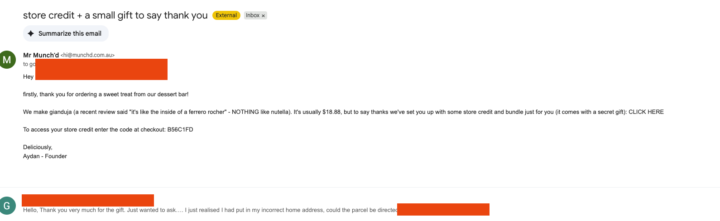
A practical automation you can set up and use in under 10 minutes to thank customers for their order with a very personal email and a gift to encourage repeat orders. - Tool: Zapier (free) - Goal: Send an authentic, personalised email from your own email to offer another purchase or say thanks outside of standard ‘email confirmations’ like this: Context: The tool we’ll be using works on a ‘trigger-response’. Meaning: - When something happens on ‘App 1’ - Make something happen on ‘App 2’ Step 1: Create a Zap Step 2: Select a Trigger The first thing we do inside a ‘zap’ is select a trigger. This is going to determine what turns the workflow on - today we’ll be using Square. This is ideal for businesses that take orders via Square. So, we’re going to select trigger and search for Square. Step 3: We have selected the app, but the automation needs to know what ‘event’ to look out for. In this case we want to message customers that have placed an order. So, we’ll select ‘New Order’, and click continue. Note: When an order is placed, it starts as ‘OPEN’. On Square, when people place an order via your online system it starts as ‘OPEN’, but when they tap in person it starts as ‘COMPLETED’. Since, we want to send an email to people that have ordered online and we need their email, we want to see the data from orders that were ‘OPEN’, as that contains their email. So, we’ll select the order status: ‘OPEN’ Step 4: Click ‘test’ This basically just makes sure that the data is being pulled correctly. Step 5: Set up the action! After a ‘trigger’, an action is needed. In this case, we want to send an email, so we’ll select Gmail and the action event: ‘send email’. Step 6: Write your email To ‘personalise’ an email, we’ll be using dynamic data instead of text. So instead of ‘Hi Aydan’, we’ll use ‘Hi [customer name]’. This is called ‘field-mapping’. Part 1: Make sure the email goes to the person that placed an order. We can press the ‘+’ in the box under ‘To’ (like who the email is going to be sent to) and you’ll see a few options when you type email. Select an option that contains their email.
2
0
1-1 of 1
powered by
skool.com/small-business-automation-2002
Taking manual chaos to clean, automated systems for IG-based small businesses. How to ACTUALLY use AI+Automation to make more money & buy back time.
Suggested communities
Powered by