
Write something

Sep 22 •
META'S MUSE
Take a look at Muse – your personal AI agent. Redeem my code in Settings within 48 hours of joining and we'll both get 1 billion Muse tokens. Code: HQKFII https://muse.ai/join
0
0

Jul 4 •
🚨 Claude Fable 5 — FREE in your terminal (yes, really)
Anthropic's most powerful model just dropped... and you can run it in Claude Code CLI right now, no extra cost. Here's how: Update Claude Code → claude update Launch a new terminal session Type /model fable Set your thinking level and go That's it. You're now running a Mythos-class model for long, complex builds — straight from your terminal. 🔥 Here is tutorial video: https://youtu.be/D48nWj9QzSs ⚠️ Heads up: it's not the default and it burns through usage faster than Sonnet/Opus, so save it for the big, ambiguous tasks — not everyday queries. Try it and drop your results below 👇
0
0

Oct '25 •
Seeking some advice
Hi everyone, María here. I’m feeling a bit lost and worried because I’m not sure I’ll be able to learn how to do this. Could you please tell me how you did it and how difficult you found it? I’m not a very technical person, so any advice would really help.

Oct '25 •
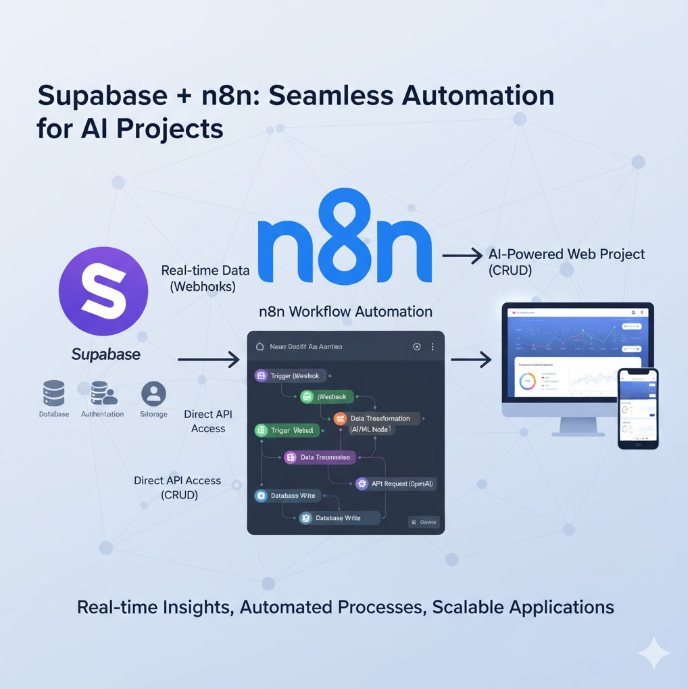
AI Automation made it easy
Connecting Supabase + n8n for My New Web Project Exploring how Supabase and n8n can work together to automate and manage data for my latest AI-powered web project. Comment below what you think about the idea....
0
0

Oct '25 •
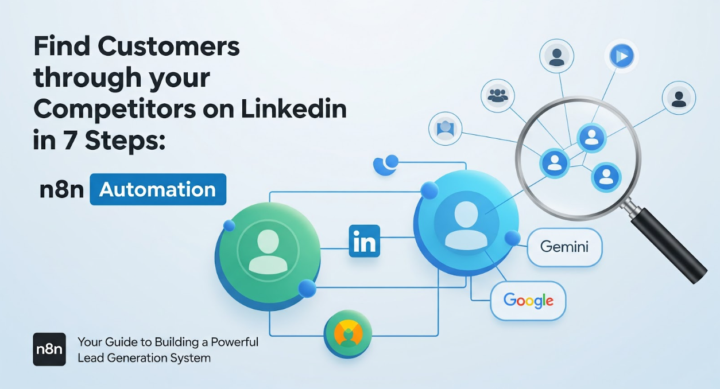
Find Customers through your Competitors on LinkedIn in 7 Steps: n8n Automation
Do you follow your competitors on LinkedIn to know what's happening in the market and who is working with your competitors? While it can give you a lot of insights, it is nearly impossible to track your competitors' activity manually on LinkedIn. That's when you use this n8n automation workflow to find customers through your competitors on LinkedIn: Step 1 - Define your competitors - Node: Manual Trigger or Form. - Input: list of LinkedIn company pages or personal profiles representing direct competitors. - Store them as workflow variables for later use. --------------------------- Step 2 - Identify competitors active 5+ days per week - Node: HTTP Request (PhantomBuster / LinkedIn API partner). - Pull each competitor’s activity log from the past 7 days: posts, likes, comments, shares. - Count active days. - Filter for those with engagement on 5 or more distinct days. - Output: “Active Competitors” list for further tracking. --------------------------- Step 3 - Fetch interaction network of active competitors - Node: HTTP Request (same tool). - For each competitor: - - Gather all profiles they’ve interacted with — those they’ve liked, commented on, or shared posts from. - - Also capture users who’ve engaged (liked/commented) on the competitor’s own posts. - Store: name, LinkedIn URL, interaction type, company name, and engagement date. --------------------------- Step 4 - Filter potential customers based on ICP - Node: Function / Gemini. - Input: all interaction profiles + your ICP. - Ask Gemini to filter and retain only those who match the ICP (e.g., “Operations Managers in manufacturing companies with 100–1000 employees in the US”). - Output: refined list of potential customers likely relevant to your offerings. Suggested Gemini instruction:“From this list of LinkedIn profiles, keep only those who fit the Ideal Customer Profile: [ICP details]. Return their names, companies, and roles.” ---------------------------
0
0
1-7 of 7
powered by

skool.com/ai-automation-academy-1412
An AI resource hub with practical guides, frameworks, and a full-day AI assistant build course being added soon.
Suggested communities
Powered by