Activity
Mon
Wed
Fri
Sun
Dec
Jan
Feb
Mar
Apr
May
Jun
Jul
Aug
Sep
Oct
Nov
What is this?
Less
More
Owned by Stan
Affordable bulk email software, training and support for people who want control, lower costs and freedom from all-in-one platforms.
Skoolers
148.2k
Free
8 contributions to Bulk Email Independence

1d •
How to Add Random Text to Emails with MaxBulk Mailer
Learn how to automatically insert random text, letters, and numbers into your email messages with MaxBulk Mailer. In this tutorial, I show you how to control the length and characters of your randomly generated text. Use this feature to create message variations, generate unique identifiers, and test email templates or spam-filter behavior. 📌 RANDOM TEXT TAG {Insert Random Text: min, max, charset} PARAMETERS • min: Minimum length of the generated text. • max: Maximum length of the generated text. • charset: Characters allowed in the generated text. CHARACTER SETS [A-Z] → Uppercase letters [a-z] → Lowercase letters [0-9] → Numbers [\ ] → Allow spaces COMBINE CHARACTER SETS [A-Z][a-z] → Uppercase and lowercase letters [A-Z][a-z][0-9] → Uppercase, lowercase, and numbers [A-Z][0-9][\ ] → Uppercase, numbers, and spaces EXCLUDE CHARACTERS [^O0] → Exclude uppercase O and the number 0 [^O0Il1] → Exclude uppercase O, number 0, uppercase I, lowercase L, and number 1 COMBINED EXAMPLE [A-Za-z][0-9][\ ][^O0Il1] Allow letters, numbers, and spaces, while excluding O, 0, I, l, and 1. Random text makes individual messages different, but it does not guarantee improved email deliverability. Focus on relevant content and permission-based mailing lists. 🔗 Discover MaxBulk Mailer: https://www.maxprog.com Thank you for watching! Subscribe for more MaxBulk Mailer tutorials and email marketing tips. #MaxBulkMailer #EmailMarketing #RandomText #EmailTutorial #Maxprog
1
0
6d •
How to Send QR Codes by Email with MaxBulk Mailer
Learn how to send QR codes by email with MaxBulk Mailer! In this tutorial, I show you how to insert a QR code into your message and customize its content, alignment, size, clickable link, and color. Use QR codes to share website links, promotions, event details, and other information your recipients can scan with their phones. 📌 QR CODE TAG {Insert QR Code: data, alignment, size, link, color} Customize the tag with these parameters: • Data: The information you want to encode in the QR code. • Alignment: Position the QR code left, center, or right. • Size: Set its size in points, such as 250 or 500. • Link: Make the QR code clickable by linking it to a web page. • Color: Choose a named color such as red, blue, green, or grey, or use a hexadecimal RGB value such as 3B6895. Watch the video to see it in action.
0 likes • 6d
@Lutz Cleffmann, when you need to talk to me in the support, just tell the bot to do so, and I will automatically receive a notification.
0 likes • 6d
I have reopened the ticket
Jun 2 •
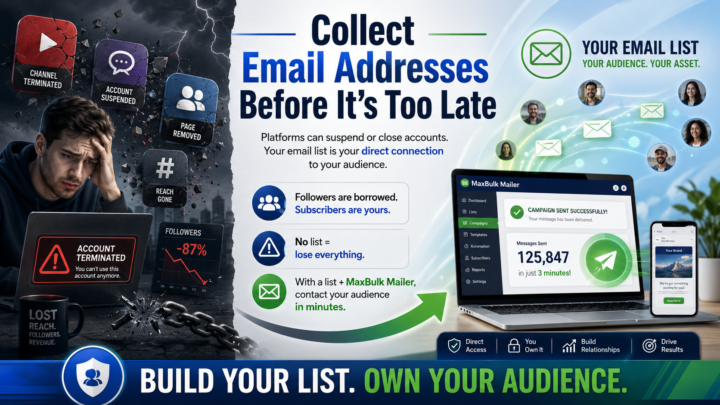
🚨 Don’t build your audience on rented land.
A YouTube channel can be closed.A social media account can be suspended.A page can disappear.Your reach can drop overnight. That means one thing: followers are not really yours. But your email list is different. When people give you their email address, you have a direct connection with them. No algorithm. No platform deciding who sees your message. No risk of losing your entire audience because an account gets blocked or removed. ✅ With an email list, you keep control. ✅ With an email list, you can contact your audience anytime. ✅ With MaxBulk Mailer, you can send your message to thousands of subscribers in minutes. No list = you can lose everything.Build your list. Own your audience. 🎁 Special offer: Get 50% off all Maxprog email software with coupon code VIAD2010. 👉 Visit: https://fastspring.maxprog.com/ Enter the coupon code at the FastSpring checkout. Start collecting email addresses today — before it’s too late.
1
0
May 26 •
🚀 New course available: Email List Hygiene & Deliverability
Hi everyone, I’ve just added a new course: Email List Hygiene & Deliverability. This course is for anyone who wants to send better email campaigns, avoid common deliverability problems, and understand why “just sending to a big list” is often a bad idea. Inside, we cover practical topics like: ✅ Why clean email lists perform better ✅ How bad addresses hurt your sender reputation ✅ When and why to verify an email list ✅ How to reduce bounces and complaints ✅ Why engagement matters for deliverability ✅ Simple habits to keep your list healthy over time The goal is not to make things complicated. It is to help you understand the basics clearly so you can send campaigns with more confidence and fewer problems. If you use MaxBulk Mailer, eMail Verifier, or any email marketing tool, this course will help you build a cleaner, safer, and more professional sending workflow. 👉 You can find it now in the classroom/course section. Enjoy the course, and feel free to share your questions or comments here.
1
0

May 15 •
The Story Behind iCash
iCash did not start as iCash. The original idea goes back to the late 1980s, and the first real version was released at the end of 1991 under the name Peggy Première. It was written in Pascal, sold on 3.5-inch floppy disks, and originally created for Windows 3.1 and IBM OS/2. Years later, after I started Maxprog, I brought the idea back from scratch and released iCash 1.0 in 2003. So yes, iCash has a long history behind it: from floppy disks and shareware catalogs to Mac OS, Windows, multiple languages, and many years of updates. I wrote the full story here: 👉 https://www.maxprog.com/site/blog/post.php?id=889 It is also a good example of something I have always believed: The best software often starts with a real personal need.
1-8 of 8

@stanbusk
Software Developer specialized in Email Marketing and personal finance. Developer of MaxBulk Mailer, iCash, eMail Extractor, and Email Verifier.
Active 7h ago
Joined Apr 29, 2026
Belize