Activity
Mon
Wed
Fri
Sun
Jul
Aug
Sep
Oct
Nov
Dec
Jan
Feb
Mar
Apr
May
What is this?
Less
More
Memberships
Plain English IT
23 members • Free
1 contribution to Plain English IT

7d •
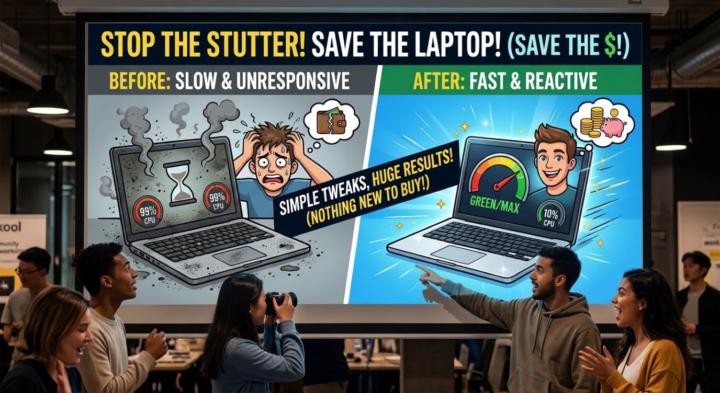
Revive Your Slow Laptop: A Step-by-Step Fix Guide
Shoutout to @Robert Young for bringing this up this week! TL;DR Before buying a new laptop, try these four things in order: disable unnecessary startup apps, free up storage space, add more RAM or swap in an SSD, and blast dust out of the vents with compressed air. Total cost: anywhere from $0 to $100 depending on how far down the list you need to go — versus $400–$700 for a replacement. Also, check out the new course I published under the courses menu! ——————————— Dealing with a sluggish laptop is frustrating, but you can usually get it running like new without spending anything—or with one cheap hardware upgrade. Work through this checklist in order, starting with the easiest software fixes before touching any hardware. 1. Quick Software Wins (Free) Before anything else, cut the background processes quietly draining your performance. • Trim Your Startup Apps — Most apps quietly add themselves to your startup list, burning through RAM and CPU before you’ve even opened a browser. • Windows: Hit Ctrl + Shift + Esc to open Task Manager, click the Startup Apps tab, and disable anything non-essential (Spotify, Discord, Steam, etc.) • Mac: Go to System Settings → General → Login Items and remove what you don’t need. • Clean Up Your Browser — Chrome is a notorious memory hog. Ditch unused extensions and enable built-in memory savers (or install a tab-suspender) to stop background tabs from quietly eating resources. • Free Up Storage Space — Once a drive hits 80–85% full, performance degrades fast. The OS needs headroom to manage virtual memory, and without it, everything slows down. • Run Storage Sense (Windows) or check Storage Settings (Mac) to clear temp files, cached data, and old downloads. 2. Deeper System Maintenance (Free) If the basic cleanup didn’t help, something more stubborn may be causing the drag. • Find the Resource Hogs — Open Task Manager (Windows) or Activity Monitor (Mac) and sort by CPU and Memory. Any process consistently pinned at 90–100% is your problem. Try reinstalling, updating, or swapping it for a lighter alternative.

1 like • 7d
Thank you Paul for the shout out and all laptop fix guide, much appreciated. I have a 5 year old laptop that I have been trying to bring back to life for some time now. I have done everything in your guide and much, much more with no success. With one exception, upgrading the RAM. No one will touch my laptop due to its age and I am cautious about doing the upgrade myself. With just about every function on my laptop running slow, freezing or just crashing...how can I tell if my laptop is overheating causing the processor to slow down?
1-1 of 1

Active 6d ago
Joined May 17, 2026
Powered by