Activity
Mon
Wed
Fri
Sun
Nov
Dec
Jan
Feb
Mar
Apr
May
Jun
Jul
Aug
Sep
Oct
What is this?
Less
More
203 contributions to WXRLD BUILDERS NATION

Sep 3 •
Excited
Guys, it's been a while now. I have been offline for good reason! I have been building my thing. Super excited to announce, I am open for business!! www.themessyartofhumaning.com 💥🚀
1 like • Sep 4
@Nicole Byers ❤️
0 likes • Sep 7
@Starr E thanks 😊

May 4 •
SOS
SENDING OUT AN ****SOS***** does anyone have a basic understanding of computers????? everytime i leave mine unattended it changes something!!!!!!! funny not funny!!!! so now yahoo has inserted itself as my search engine along side A WHOLE BUNCH OF MEDIA THAT I HAVE NO INTEREST IN VIBRATING ALONGSIDE!!!!!! hahaha cry cry cry. also... by the by, there used to b an icon to bring up old search history... GONE!!!! im on an island on my own tryin to start a fire and the wood is wet!!!!! hahahaa xxx
1 like • May 5
This is literally the answer I got from Gemini when I posted your entire message into her: It sounds like your browser has been "hijacked" by some pesky bundled software. This usually happens when a free download sneaks in some extra settings. Here is the rescue kit to get things back to normal. 1. Evict Yahoo (Reset Your Search Engine) Your browser likely had its default settings swapped. - Chrome: Go to Settings > Search engine > Manage search engines and site search. Find Google (or your preferred engine), click the three dots, and select Make default. - Safari: Go to Settings > Search and change the drop-down menu back to Google. - Edge: Go to Settings > Privacy, search, and services > Address bar and search (at the very bottom). Set "Search engine used in address bar" to Google. 2. Clear the "Media" Clutter The "vibrating" media is likely a collection of "News Feeds" or "Widgets" that appear on your home page or taskbar. - Browser Home Page: Look for a Gear icon in the top right corner of your "New Tab" page. Turn off "Show feeds," "Content," or "News." - Windows Taskbar: If icons are popping up at the bottom of your screen, right-click a blank space on the taskbar, select Search or News and interests, and choose Turn off. 3. Find the Lost History Icon If the button disappeared, you can always use the universal "emergency" keyboard shortcut to see everything you’ve visited: - The Shortcut: Press Ctrl + H (Windows) or Cmd + Y (Mac). - The Menu: You can also find it by clicking the three dots or three lines in the top right corner of your browser and selecting History. Pro-Tip for "Dry Wood" Check your Extensions or Add-ons in your browser settings. If you see anything you don't recognize (like "Search Manager" or "Weather Tool"), remove it immediately. That is usually the source of the "unattended" changes.
0 likes • May 5
I would never install .exe files from random ppl!
May 4 •
ITS TIME***********
HEY HEY HEY part 2.... i just made an executive decision. i will hold my first gathering tomorrow 9am AET sydney time. (THE SAME TIME THE CHALLNGE WAS SET FOR!!!)- hopefully to make it easier. we can connect and plan whats next! i will b moving forward with my show!!! CHANTELLEVISIONZ- more than a podcast!!!! singing sharing healing grieving connecting learning growing!!!!!! AND YOURE INVITED!!!! as audience as a guest. using my life experience as an artist entertainer creator healer activation AND SHINING A LIGHT ON OUR OFFERINGS - AS WE R HERE WITH THE SAME MISSION SHINE OUR INVINCIBLE LIGHT SO BRIGHT THAT EVERY BEING IS ELIMINATED OF ALLL DOUBT AND IS IGNIGHTED WITH THE COURAGE N CONVICTION TO START THE JOURNEY OF SELF DISCOVERY AND REMEMBERANCE !!!!!! CAN I GET A HEAVEN YEAH?????????????? https://us06web.zoom.us/j/81693527013?pwd=1BEygojX1dvYMylDaRkXLCFSay5cqe.1
0 likes • May 5
Awesome Chantelle!!! Not making any promises, but I'll see if I can make it. ❤️

May 2 •
1st viral video!!
When your in alignment with your purpise everything flows effortlessly!!! My daughter made me a new ticktock and in 3 days we were blasting off!!! There generation is better at socials lol felt so humbled and honored to give it over to her! We are building this kingdom as a family 🙏🫶👑💓💎

1 like • May 3
Amazing Nicole, congrats!
Apr 28 •
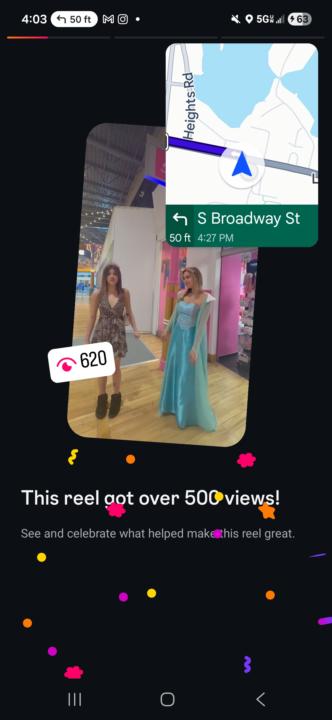
When the younger generation shines!!!
I let my 17 yr old daughter and daughter in law take over the socials for our Princess spa and we went viral!!!! They know all the trends this is a DREAM watching my daughter heal and find purpose! None of my kids finished school they al dropped out because ADD and there concsious creator's Anna struggled with suicidal thoughts like me and Nathan!!! Sooooo its amazing to watch my stars get on mommas level and Build this kingdom with me!!! My son did the videos for our next promo videos and he was so into it makes my heart burst!!!! Ascension mastery at there age I see them listening to there inner guidance 🫶👑🙏💎👑🔥
1 like • May 3
Wow Nicole! 😍
1-10 of 203

@leoni-selby-4164
🔥 Soul-driven creator @themessyartofhumaning. Full-spectrum messy stories & shadow work. For multi-passionate creatives building extraordinary lives.
Active 25d ago
Joined Jan 8, 2026
ENFP
Powered by