Activity
Mon
Wed
Fri
Sun
Sep
Oct
Nov
Dec
Jan
Feb
Mar
Apr
May
Jun
Jul
Aug
What is this?
Less
More
Owned by Rebecca
Go from 'bad with money' to proud of your progress! Build better habits, talk money, upgrade your money mindset, heal your money story (shame-free!).
YouTube For Skool
147 members • $5/month
Start a Business with No Money
540 members • Free
Focused Founders™
611 members • $9/month
Build Your Online Business
1.5k members • $9/month
💖 Soul-First CEO LaB ⭐
35 members • $888/year
REVENUE REVOLUTION
10.6k members • Free
The Art Of Going Live
230 members • $25/month
Your First $5k Club w/ARLAN
33.6k members • Free
BYOB: $25K BLUEPRINT™
46 members • $1,111/month
6 contributions to Skool Extensions 🧩

🔥
11d •
Skool Dashboard (VIP)
𝗦𝗸𝗼𝗼𝗹 𝗗𝗮𝘀𝗵𝗯𝗼𝗮𝗿𝗱 — 𝗬𝗼𝘂𝗿 𝗰𝗼𝗺𝗺𝘂𝗻𝗶𝘁𝘆 𝗶𝗻 𝗻𝘂𝗺𝗯𝗲𝗿𝘀, 𝗼𝗻 𝗼𝗻𝗲 𝘀𝗰𝗿𝗲𝗲𝗻 𝘆𝗼𝘂 𝗯𝘂𝗶𝗹𝘁 𝘆𝗼𝘂𝗿𝘀𝗲𝗹𝗳 Skool shows you a thin row of stats under your community header and leaves it at that: a number for today, no history, no context, nothing you can arrange. The Skool Dashboard replaces that row with a full view of how your community is actually doing — open it as a side panel next to your work, or as a popup that fills the screen. The layout is yours. Drag any tile to where you want it, group tiles into blocks you name yourself, collapse the ones you rarely look at, and reset the whole thing whenever it has drifted. Your layout and your revenue goals travel with you — they are cloud-synced, so the dashboard looks the same on your laptop and your desktop. On top sit the curves: members and revenue over time, projected 30 and 90 days ahead from your own trend, plus 15 milestones on the way to the revenue goal you set — each with the amount still missing and the date it is on track for. The member curve is there from the first day, because Skool keeps that history; the revenue curve is built from daily snapshots the Extension takes for you, so a fresh install needs a few days before it has a line worth reading. Below that, the numbers that explain the curves. Where your members come from — visitors, signups and new revenue split by acquisition channel — next to premium and VIP members, running trials, engagement and your ranks in the Skool Finder by category, language and overall. Tiles from your own panels join them: open tasks including the overdue ones, pipeline contacts, tagged contacts, bookmarks and text templates, each one a click away from the panel it belongs to. Your own numbers are part of it too: the streak flame, your longest streak, the points still missing to the next level, what you did today across all your communities, and your contribution grid. Run several communities and the dashboard adds them up by default — every community you administer in one set of figures — with a filter in the header to drop down to a single one. Goals follow that filter, so an overall target and a per-community target can exist side by side.


🔥
8 likes • 11d
That is wonderful as well as projections. Plenty of owners will love this feature.
🔥
15d •
Background Changer (from level 3)
𝗕𝗮𝗰𝗸𝗴𝗿𝗼𝘂𝗻𝗱 — 𝗥𝗲𝗽𝗹𝗮𝗰𝗲 𝘁𝗵𝗲 𝗦𝗸𝗼𝗼𝗹 𝗽𝗮𝗴𝗲 𝗯𝗮𝗰𝗸𝗴𝗿𝗼𝘂𝗻𝗱 𝘄𝗶𝘁𝗵 𝗮 𝗴𝗿𝗮𝗱𝗶𝗲𝗻𝘁, 𝘆𝗼𝘂𝗿 𝗼𝘄𝗻 𝗶𝗺𝗮𝗴𝗲 𝗼𝗿 𝗮 𝗱𝗮𝗶𝗹𝘆 𝗽𝗵𝗼𝘁𝗼 Skool ships one page background, and it is the same for everyone. The Background feature replaces it with something you pick: thirteen ready-made gradients and mesh blends (Aurora, Sunset, Ocean, Midnight, Candy, Mint and more), a two-colour gradient you mix yourself with a free angle, an image you upload, or a photo that changes every single day. Four daily-photo sources are available: Bing Daily, Windows Spotlight, Wikimedia Picture of the Day and NASA's Astronomy Picture of the Day. Each fetches a fresh image once a day, so the page looks different every morning without you touching a setting. Preview thumbnails load for all sources up front — including the ones you have not selected — so you see the actual picture before choosing. The feature unlocks with your level in the Skool Extensions community. Level 3 opens the Background itself along with all gradients, your own colours and your own image. The daily-photo sources follow: Bing and Spotlight at level 4, Wikimedia and NASA at level 5. Locked tiles stay visible with a grey wash and a level badge — click the badge and you land on the community leaderboard, where you can see your standing and what the next level takes. Two sliders control how the page sits on top of the image. Transparent cards sets how much of the background shows through Skool's cards and panels, and Blurred controls how soft the photo behind them gets. Both update live while you drag, and dark mode keeps its own slightly stronger opacity so the balance between the two modes survives a single slider. On photo backgrounds, readability is handled for you: the text colour is chosen by real WCAG contrast against the image rather than a rough brightness guess, and text sitting directly on the background — native header links, the pin strip footer — gets a fine outline so it stays legible over busy areas. Gradients and mesh blends are left alone; they do not need it.

🔥
2 likes • 11d
Very interesting.
🔥
Mar 13 •
Copy to Module (VIP Feature 💎)
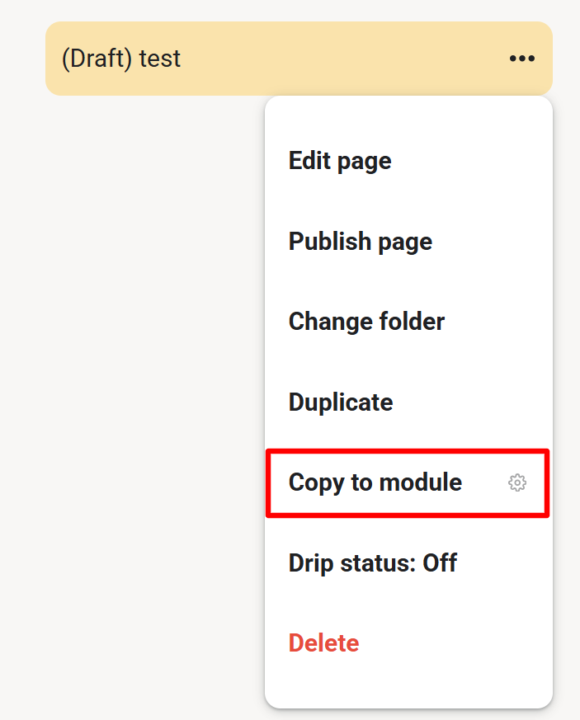
𝗖𝗼𝗽𝘆 𝘁𝗼 𝗠𝗼𝗱𝘂𝗹𝗲 — 𝗗𝘂𝗽𝗹𝗶𝗰𝗮𝘁𝗲 𝗟𝗲𝘀𝘀𝗼𝗻𝘀 𝗔𝗰𝗿𝗼𝘀𝘀 𝗠𝗼𝗱𝘂𝗹𝗲𝘀 As a community admin, sometimes you need the same lesson in multiple modules — for a "Best Of" collection, restructuring your course, or making content available in different contexts. Copy to Module lets you duplicate any lesson (including its video) into another module with just a few clicks. Open any lesson's 3-dot menu and select "Copy to module". A dialog appears where you choose the target module from a dropdown. Click "Copy" and the extension handles the rest — duplicating the page content, preserving the video, and placing it in your chosen module. Once done, you're automatically redirected to the new copy. No more manually recreating lessons or losing video associations when reorganizing your course content. --- 𝗜𝗻 𝗠𝗼𝗱𝘂𝗹 𝗸𝗼𝗽𝗶𝗲𝗿𝗲𝗻 — 𝗟𝗲𝗸𝘁𝗶𝗼𝗻𝗲𝗻 𝘇𝘄𝗶𝘀𝗰𝗵𝗲𝗻 𝗠𝗼𝗱𝘂𝗹𝗲𝗻 𝗱𝘂𝗽𝗹𝗶𝘇𝗶𝗲𝗿𝗲𝗻 Als Community-Admin brauchst du manchmal die gleiche Lektion in mehreren Modulen — für eine "Best Of"-Sammlung, eine Kurs-Umstrukturierung oder um Inhalte in verschiedenen Kontexten verfügbar zu machen. Copy to Module lässt dich jede Lektion (inklusive Video) mit wenigen Klicks in ein anderes Modul duplizieren. Öffne das 3-Punkte-Menü einer beliebigen Lektion und wähle "In Modul kopieren". Ein Dialog erscheint, in dem du das Zielmodul aus einem Dropdown wählst. Klick auf "Kopieren" und die Extension erledigt den Rest — dupliziert den Seiteninhalt, behält das Video bei und platziert alles in deinem gewählten Modul. Anschließend wirst du automatisch zur neuen Kopie weitergeleitet. Kein manuelles Neuerstellen von Lektionen mehr und kein Verlust von Video-Verknüpfungen beim Reorganisieren deiner Kursinhalte.
🔥
2 likes • Mar 29
@Éva Raposa Nice did it help?
🔥
2 likes • Mar 30
@Éva Raposa Yay!!
🔥
Mar 27 •
Calendar Helpers (VIP Feature 💎)
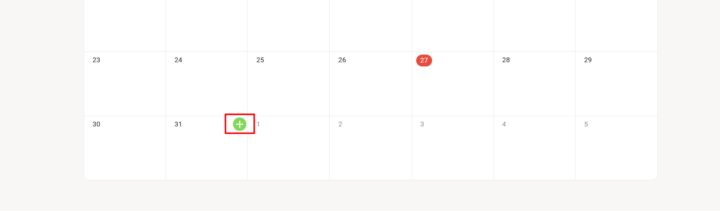
𝗖𝗮𝗹𝗲𝗻𝗱𝗮𝗿 𝗛𝗲𝗹𝗽𝗲𝗿𝘀 — 𝗤𝘂𝗶𝗰𝗸-𝗖𝗿𝗲𝗮𝘁𝗲 𝗘𝘃𝗲𝗻𝘁𝘀 𝗳𝗿𝗼𝗺 𝘁𝗵𝗲 𝗖𝗮𝗹𝗲𝗻𝗱𝗮𝗿 𝗚𝗿𝗶𝗱 Creating events in Skool means clicking the "+" button, then manually picking a date and adjusting the duration every single time. Calendar Helpers streamlines this by adding a quick-create button directly to each day in your calendar grid. Hover over any day cell and a small green "+" button appears in the top-right corner. Click it and the native event creation modal opens with the correct date already pre-selected and the duration automatically set to one hour. No more scrolling through date pickers or fixing default values — just hover, click, and start filling in your event details. The feature intelligently handles month boundaries, so days from the previous or next month shown in the grid work just as reliably. Everything happens through Skool's own event modal, so your events are created natively with no workarounds. Calendar Helpers is available for community admins and owners. Toggle it on or off in the Admin Features section of the Toolkit Settings. --- 𝗞𝗮𝗹𝗲𝗻𝗱𝗲𝗿-𝗛𝗲𝗹𝗳𝗲𝗿 — 𝗦𝗰𝗵𝗻𝗲𝗹𝗹𝗲𝘀 𝗘𝗿𝘀𝘁𝗲𝗹𝗹𝗲𝗻 𝘃𝗼𝗻 𝗘𝘃𝗲𝗻𝘁𝘀 𝗶𝗺 𝗞𝗮𝗹𝗲𝗻𝗱𝗲𝗿-𝗥𝗮𝘀𝘁𝗲𝗿 Events in Skool zu erstellen bedeutet jedes Mal: auf den „+"-Button klicken, dann manuell ein Datum auswählen und die Dauer anpassen. Kalender-Helfer vereinfacht das, indem direkt auf jedem Tag im Kalender-Raster ein Schnell-Erstellen-Button erscheint. Fahre mit der Maus über eine Tageszelle und ein kleiner grüner „+"-Button erscheint in der oberen rechten Ecke. Klicke darauf und das native Event-Erstellungsfenster öffnet sich — mit dem richtigen Datum bereits vorausgewählt und der Dauer automatisch auf eine Stunde gesetzt. Kein Scrollen durch Datumsauswahlen oder Korrigieren von Standardwerten mehr — einfach hovern, klicken und deine Event-Details ausfüllen. Das Feature erkennt Monatsgrenzen intelligent, sodass auch Tage des vorherigen oder nächsten Monats, die im Raster angezeigt werden, genauso zuverlässig funktionieren. Alles läuft über Skools eigenes Event-Fenster — deine Events werden nativ erstellt, ganz ohne Umwege.
🔥
3 likes • Mar 27
Yes! Had no idea it was you. I thought it was a new skool feature yesterday and I was like this saves me time

Mar 26 •
Been loving the extension so far!
One feature that I really like is the fact that you can see if someone read your message or not. It takes away the anxiety part of Skool. I don't know why. 😂

🔥
1 like • Mar 26
So interesting. For me I feel like it upped the anxiety haha
1-6 of 6

🔥
@debttale
I help people unmute their money, build confidence with their money decisions, and feel safe talking finances with anyone.
Online now
Joined Mar 24, 2026
INFP
Clarksville, Tennessee
Powered by